
The 17 Core n8n Nodes That Power Almost Every Automation
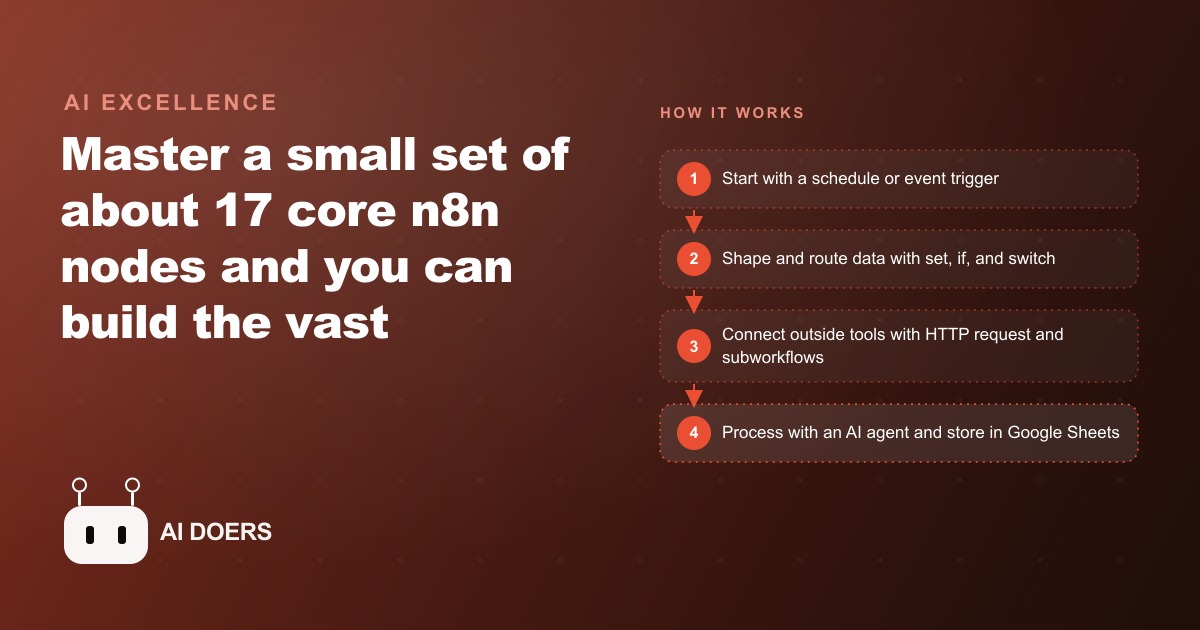
After building hundreds of automations in n8n, the same small set of roughly 17 nodes shows up again and again. Learn these triggers, data-shaping, logic, and AI nodes first and you can build the vast majority of real workflows.

If you have spent more than a few weeks building automations in n8n, you start noticing that the same nodes show up in almost everything. Not because n8n lacks options, the library is enormous, but because most business problems reduce to a small set of patterns: get a signal, fetch some data, make a decision, do something with the result. The nodes that cover those patterns appear in automation after automation, across industries and use cases, in workflows built by developers and in workflows built by people who had never written code before they opened n8n.
I am going to walk through the nodes that matter most, grouped by what they do, with enough specificity about each one that you understand not just what it is called but why it is there and what goes wrong without it. I will use a single extended example throughout: a photography studio that automated its entire booking, confirmation, gallery-delivery, and review-request workflow, saving five hours per week and reducing missed gallery sends from three per month to zero.
The Two Triggers That Start 90 Percent of Automations
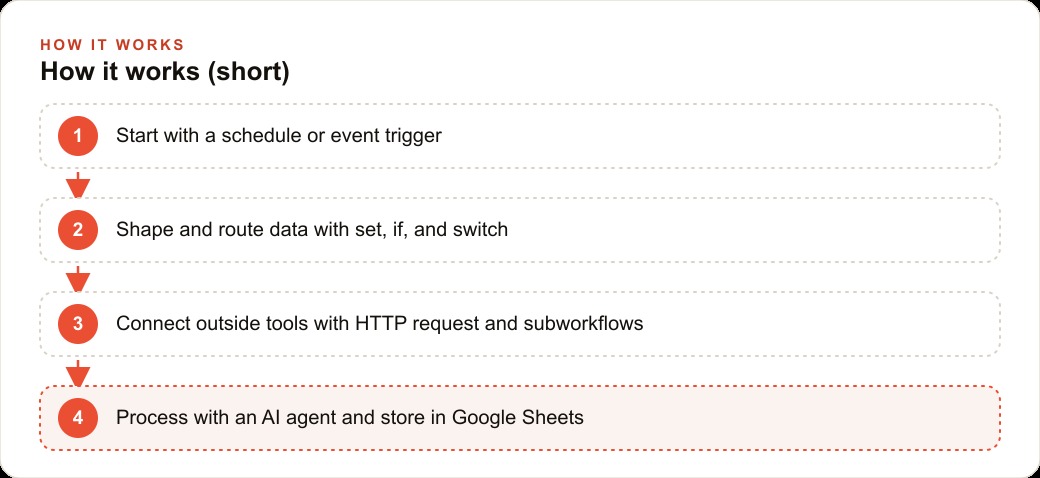
Every workflow in n8n begins with a trigger. The trigger is the moment the workflow wakes up and starts running. Almost every automation in practice uses one of two triggers: the Schedule trigger or the Webhook trigger.
The Schedule trigger runs a workflow at a defined interval or at a specific time. Every day at 8am. Every Monday at 9am. Every fifteen minutes. This is the trigger you reach for when you know in advance when work needs to happen. The photography studio uses a Schedule trigger every morning at 7am to check which shoots are scheduled for the next three days and send each client a preparation reminder. The trigger fires whether or not anyone is at their desk. It fires on weekends. It fires when the owner is traveling. This is the simple, durable core of what automation is supposed to do: run reliably on a schedule without requiring a human to initiate it.
The Webhook trigger is different. It wakes up in response to an event, not a clock. A form is submitted, a payment completes, a calendar appointment is booked, a message arrives. Something happens and that event fires a signal at a URL, which triggers the workflow. The photography studio uses a Webhook trigger for new bookings. When a client books a shoot through the booking form on the studio website, the form sends a POST request to an n8n Webhook URL. That request wakes up the booking confirmation workflow within seconds. No polling. No delay. The client gets a confirmation email before they have closed the booking form.
Understanding which trigger to use is the first decision in any automation design. If timing is what matters, use Schedule. If an external event is what matters, use Webhook. Getting this wrong does not usually break a workflow but it adds unnecessary complexity and makes the automation harder to maintain.
The Set Node: How You Keep Data Clean Across a Long Flow
The Set node, also called the Edit Fields node in more recent n8n versions, is the least glamorous node in the library and the most consistently necessary one. It does one thing: it defines or overwrites specific fields on the data object moving through the workflow.
Without the Set node, data accumulates. Each upstream node adds its own fields to the payload, and by the time you reach the step that needs to send an email or insert a row into a spreadsheet, the data object contains dozens of fields from API responses, the webhook payload, previous node outputs, and anything else that passed through. Most of those fields are irrelevant to what the current step needs to do. The Set node lets you define exactly which fields go forward and what their values are, stripping away everything else.
The photography studio workflow uses a Set node immediately after the Webhook trigger. The booking form sends a payload with the client's name, email, shoot date, shoot type, and several fields the booking system adds automatically, including timestamps, session IDs, and internal booking numbers. The Set node extracts the four fields that the rest of the workflow actually needs: client name, client email, shoot date, and shoot type. Every downstream node works with a clean, minimal payload instead of a noisy object. When something breaks, the debugging is straightforward because there are only four fields to check.
Split Out and Aggregate: The Pair That Handles Lists
Many automations work with lists. A list of bookings to confirm. A list of clients to follow up with. A list of gallery photos to package into a delivery email. n8n's approach to lists requires two nodes that work as inverses of each other: Split Out and Aggregate.
Split Out takes a list and creates one item per entry in the list. If your workflow receives a response from an API that contains an array of ten bookings, Split Out turns that into ten separate items that can each be processed individually. Every node downstream of Split Out runs once per item, not once per list. This is how you build flows that "do something for each thing in a list" without writing any code.
Aggregate goes the other direction. It collects individual items and combines them back into a single item. You use this when you want to process items individually but then combine the results before doing something with them as a group. The studio workflow uses Aggregate to collect individual gallery file links after they have been processed and renamed, then passes the full list as an attachment reference to the gallery delivery email node. Without Aggregate, you would end up sending one email per photo rather than one email with all the photos.
The If Node: The Binary Fork
The If node evaluates a condition and routes the workflow in one of two directions depending on whether the condition is true or false. This is the basic building block of conditional logic.
The studio workflow uses an If node to separate wedding shoots from portrait shoots, because the preparation reminder email for a wedding is substantially different from the one for a portrait session. A wedding reminder includes venue logistics, arrival time, a list of must-capture shots, and timeline notes. A portrait reminder includes wardrobe guidance, location details, and arrival time. The If node checks the shoot type field. If the value is "wedding," the workflow goes left, to the wedding-specific email template. If it is anything else, it goes right, to the portrait template.
What breaks without the If node is that you end up either sending every client the same generic message, losing the personal relevance that makes automated reminders feel cared for rather than mechanical, or you write increasingly complex conditional expressions inside a Code node to handle branching logic that should be visual. The If node keeps branching explicit and maintainable.
The Switch Node: When You Have More Than Two Paths
The If node handles binary choices. The Switch node handles multiple outcomes. When a field can take four or five values and each value requires different downstream handling, Switch is the right tool.
The studio workflow uses a Switch node to route gallery delivery based on shoot type: wedding, portrait, newborn, commercial, and event. Each shoot type goes to a different downstream branch because the gallery delivery email template is different, the turnaround timeline mentioned in the message is different, and the follow-up review request comes at a different interval after delivery. Weddings get a longer thank-you message and the review request comes fourteen days post-delivery to give the couple time to actually look through their gallery. Newborn shoots get a shorter, warmer message and the review request comes seven days out. One Switch node handles all five cases cleanly. Without it, you would need four nested If nodes, which is technically possible but visually difficult to follow and easy to misconfigure.
HTTP Request: The Node That Connects to Anything With an API
The HTTP Request node is n8n's Swiss army knife. It sends an HTTP request to any URL and receives the response. Because most modern software exposes an API over HTTP, the HTTP Request node is how you connect n8n to services that do not have dedicated n8n integrations.
The studio workflow uses it to send photos to an editing service via that service's API. The editing service takes RAW files, processes them according to the studio's preset, and fires a callback webhook when the edited versions are ready. n8n uses HTTP Request to upload the files, and a separate Webhook trigger to receive the completion signal and continue the workflow.
Any service that has documentation showing how to make an API call, whether that documentation shows curl commands, Postman examples, or code samples in any language, can be integrated with the HTTP Request node. Authentication modes cover API keys, OAuth tokens, Basic Auth, and bearer tokens. This makes HTTP Request the escape hatch when you need to connect to something that n8n does not have a built-in node for, which covers a substantial portion of the tools small businesses run.
Webhook Plus Respond to Webhook: The Synchronous Pair
The Webhook trigger is for receiving data from external services. The Respond to Webhook node is its complement: it sends a response back to whoever called the webhook. This matters when the calling service expects an immediate acknowledgment.
When the studio's booking form sends a POST request to the n8n Webhook URL, it expects a 200 OK response. If n8n does not respond within a reasonable window, the form treats the request as failed and may retry or display an error to the client. The Respond to Webhook node sends that 200 OK immediately, confirming receipt, while the rest of the workflow continues processing in the background. The client gets a clean confirmation from the form. The workflow handles the booking confirmation email, the calendar event creation, and the database entry without holding the form's HTTP connection open.
Without Respond to Webhook, you either get client-facing timeout errors or you are relying on the calling service to handle the delay gracefully, which not all services do.
Loop Over Items and Wait: Controlling Pace and Timing
The Loop Over Items node, previously called Split in Batches, processes a list in controlled chunks instead of all at once. This matters when you are calling an API that has rate limits, sending emails through a service that throttles large sends, or processing data that would overwhelm a downstream node if sent all at once.
The Wait node pauses a workflow for a defined period or until a specific time. The studio workflow uses Wait between the preparation reminder and the day-of shoot reminder. After sending the preparation reminder three days before the shoot, the workflow pauses until the morning of the shoot date, then resumes and sends the day-of message. The workflow remains open and waiting, not running continuously, which means it does not consume resources during the pause period.
These two nodes together give you precise control over how fast and how often your automation acts, which matters both for API compliance and for avoiding the feeling of being bombarded that clients get if messages arrive in quick succession without natural spacing.
Subworkflow: Turning Reusable Logic Into a Module
The Subworkflow node calls another workflow and passes data to it. This is how you avoid repeating the same logic in multiple workflows and maintain consistency across a system.
The studio has a "send client update" block that appears in three different workflows: the booking confirmation flow, the gallery delivery flow, and the review request flow. Rather than copying and maintaining three separate versions of the same email-sending logic, the studio built it once as a separate workflow and calls it with Subworkflow from all three places. When the email template needs to change, whether that is a new logo, updated footer, or revised contact details, the change happens in one place and takes effect everywhere automatically.
Without Subworkflow, multi-workflow systems become maintenance problems. You update one instance of a piece of logic and forget the other two, and three months later you discover clients are getting emails with an outdated address.
Google Sheets: The Operations Database for Teams Without a Database
The Google Sheets node reads from and writes to Google Sheets files. For small teams that do not run a database, Google Sheets functions as one. It is accessible to every team member with a Google account, easy to inspect manually without any tooling, and requires no infrastructure to maintain or back up.
The studio logs every booking confirmation, gallery delivery, and review request in a Google Sheets file. A row is written when the booking confirmation fires, another when the gallery is delivered, another when the review request goes out. The owner can open the sheet at any time to see the status of every recent client interaction. No database query needed. No log file to parse. The sheet is the audit trail and the operations dashboard simultaneously.
The node supports reading ranges, appending rows, updating specific cells, and querying for matching values. For small-to-medium business volumes, it is fast enough and reliable enough that adding a separate database layer is unnecessary overhead.
The Code Node: When Logic Gets Complex
The Code node executes JavaScript or Python inside n8n. It is the escape hatch when the built-in transformation nodes are not sufficient for the logic you need.
The studio uses the Code node to format the gallery delivery email differently depending on the number of photos delivered. Under fifty photos, the message says "Your gallery of [X] portraits is ready." Over fifty photos, it says "Your full gallery of [X] images is ready" and adds a note recommending the client download a desktop gallery viewer for the best browsing experience. This conditional text formatting with variable insertion is a few lines of JavaScript, and the Code node handles it in one place cleanly.
The Code node should not be the first tool you reach for. The built-in nodes handle most transformations without requiring code, and visual nodes are easier for non-developers to maintain. But when the logic is genuinely too complex for a Set node expression or a Function filter, the Code node is there, and it is more readable and maintainable than routing the workflow through six chained transformation nodes.
AI Agent: The Node That Changed What Automations Can Do
The AI Agent node is the most significant addition to n8n in the past two years. It connects an AI model to a set of tools and lets the model decide how to use those tools to accomplish a task. It supports conversation memory, which means the agent can maintain context across multiple messages in the same session. It supports structured output parsing, which means the agent can return data in a defined format rather than freeform text, making its output directly usable by downstream nodes without additional transformation. And it supports any model that has an API endpoint, which means it is not locked to a single provider.
The studio uses the AI Agent node to handle client inquiry emails. When a potential client sends an inquiry through the contact form, the Agent node reads the message, identifies what type of shoot they are describing, checks the Google Sheets booking calendar for open dates in the requested window, drafts a response with three available slots and a brief description of what the shoot would include, and adds a gentle invitation to book. The whole process runs without the owner reading the initial inquiry. The owner only sees the inquiry email if the Agent flags it as requiring a human judgment call, which it does when the request is unusual enough that its confidence in a standard response is low.
This capability separates the current generation of n8n automations from what was possible before the AI Agent node existed. Without it, automations follow fixed paths. If shoot type equals X, send template Y. Now automations can follow the path that makes sense given the specific content of an inquiry, which means they can handle the variability that previously required a human reader.
The Full System: What These Nodes Built Together
Across twelve months of running, the studio's n8n automations handled booking confirmations, shoot preparation reminders, gallery deliveries, and review requests for every client. The owner spent about five hours per week on client communications before the system was built. After it was running, that dropped to about forty-five minutes per week, mostly handling the inquiries the AI Agent flagged for human review and reading the Google Sheet to spot any pattern that needed attention.
Missed gallery deliveries, which had been running at roughly three per month during busy stretches, dropped to zero in the first month and stayed at zero. The schedule trigger and gallery delivery workflow fire reliably regardless of how busy the shoot calendar is. Review count on the studio's Google Business profile grew from twenty-two reviews to sixty-eight reviews over the year, driven by consistent review request timing and the direct link included in every request.
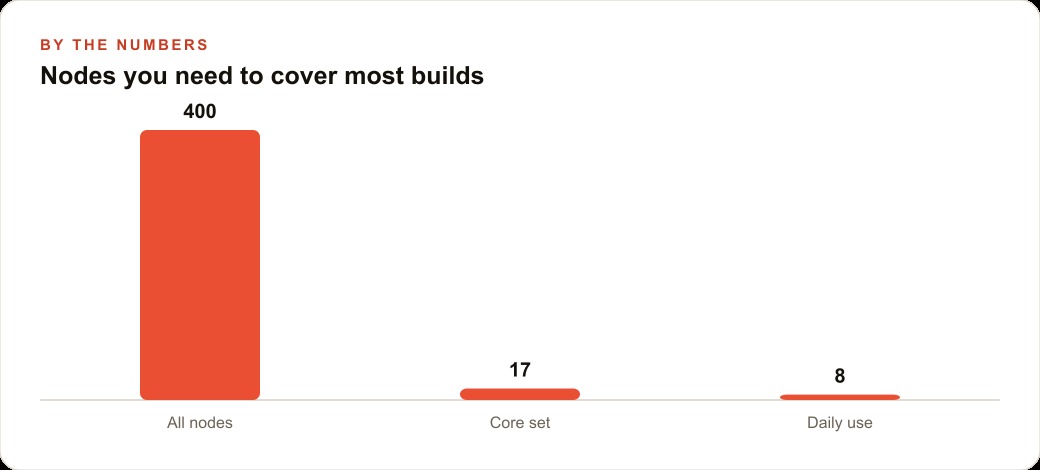
Those results came from seventeen nodes across five workflows. Schedule, Webhook, Set, Split Out, Aggregate, If, Switch, HTTP Request, Webhook plus Respond to Webhook, Loop Over Items, Wait, Subworkflow, Google Sheets, Code, and AI Agent. Not every automation uses every node. A simple appointment reminder needs maybe four. A complex client communication system needs most of them.
Building fluency with these nodes is the fastest path from knowing that n8n exists to being able to build almost anything a small business needs. The catalog has hundreds of nodes, and some of them are worth learning for specific integrations. But these seventeen are the ones you will reach for every week, in every industry, for every problem type. Everything else is a variation.
That is exactly what we do at AI DOERS. Book a private 30-minute call with Madhuranjan Kumar and we will map the fastest path to it for your specific business.
Book your call →
Madhuranjan Kumar
Madhuranjan Kumar brings 20 years of performance-marketing experience and has managed over $200 million in Facebook ad spend for brands across the United States and beyond. His expertise spans the full modern marketing stack: Meta, Google Ads, TikTok, email automation, CRM, and the websites that hold it together. At AI DOERS he turns that track record into lead-generation systems for businesses across every industry.