
How to Let a Claude Code Agent Drive Chrome the Efficient Way
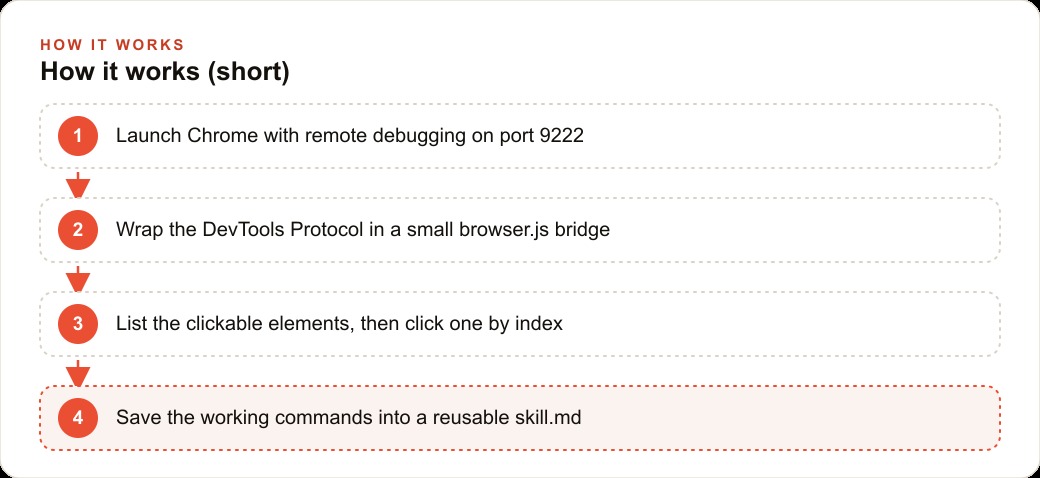
Launch Chrome in remote debugging mode on a port, then wrap the Chrome DevTools Protocol in a tiny browser.js file with a few commands like list, open, elements, and click, so your agent navigates by command instead of faking a mouse.

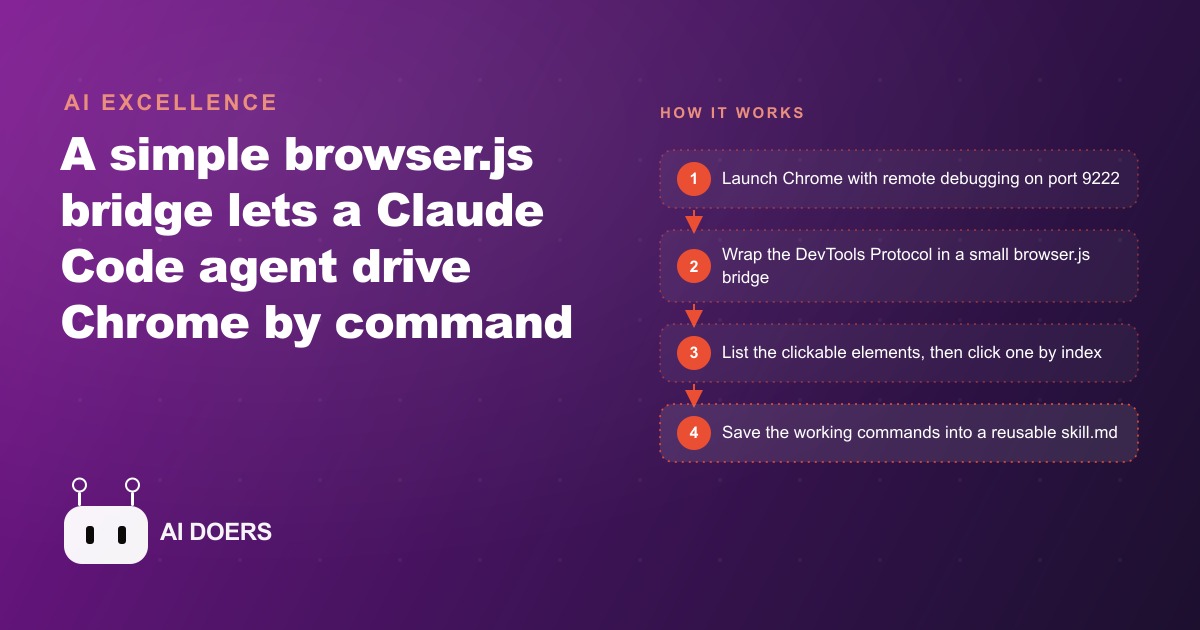
The first sign that a team has too much manual browser work is when someone installs a screen recorder to document their own steps. The owner of a small e-commerce business did exactly that at the start of last quarter, recording a walkthrough of the order management portal so a new hire could learn the process. Fifty orders processed daily, three minutes each, two and a half hours of the same clicks every day, and the best documentation available was a screen recording someone had to watch and manually follow. That is the problem this article is about, and by the end of it, the solution is in place.
What changed things was a lightweight bridge between Claude Code and Chrome built around the Chrome DevTools Protocol. No screen-scraping library. No simulated mouse. No computer-vision system that falls apart when a banner shifts a button twenty pixels down the page. Just a small file called browser.js, a launcher that starts Chrome in debug mode, and five commands that let an AI agent navigate a real browser by instruction rather than by pretending to be a human hand. I, Madhuranjan Kumar, have walked through this setup with several teams, and the pattern of the journey is consistent enough to describe as a single story from start to finish.
The problem: ten browser chores, ten hours a week, zero automation
The specific chore list at the e-commerce store included processing incoming orders from three supplier portals, checking stock levels on a fourth portal each morning, copying tracking numbers from the shipping dashboard into the store's CRM and website stack, and pulling a daily inventory summary from the admin panel into a spreadsheet the buyer reviewed each afternoon. None of these tasks required judgment. All of them required a human being, logged into a browser, clicking the same sequences of things in the same order every day.
At fifty orders processed daily, three minutes per order, the order management work alone consumed two and a half hours. Add the stock checks at thirty minutes, the tracking number transfer at forty-five minutes, and the inventory pull at twenty minutes, and the team was spending roughly four hours every day on browser chores that produced no information that was not already in the systems they were clicking through. They were just moving data between tabs by hand.
The conventional automation tools either could not handle the supplier portals, which required an authenticated session and had no API, or broke every few weeks when a portal updated its interface. The team had tried one screen-automation tool that moved a simulated cursor around the screen, and it worked for about three weeks before a UI update at one supplier made the cursor click the wrong field consistently, and no one noticed for two days. That was the end of that experiment.
What the team needed was something that could read a web page like an intelligent agent rather than memorize pixel coordinates. The browser.js bridge does exactly that.
Day 1: launching Chrome in debug mode and opening the connection
The setup starts with a short launcher script that opens Chrome with remote debugging enabled on a specific port, in this case port 9222. This single flag turns Chrome into a server that something else can connect to and issue commands through. The browser looks and behaves exactly as normal, but it now has a socket that an agent can talk to.
The bridge uses the Chrome DevTools Protocol, which is the same low-level communication channel that developer tools use when they connect to a running browser for inspection and debugging. Raw CDP is verbose and technical, full of JSON messages that specify domains and method names in a way no agent should be expected to write by hand. The browser.js file wraps all of that into a short, readable command set. Instead of sending a raw CDP request to find clickable elements and interpret the response, the agent sends a plain command and gets back a numbered list.
Getting this running the first time takes about an hour, including the time to write the launcher script, create the browser.js bridge, and verify that the agent can connect and list the open tabs. The first successful connection is the moment that makes the approach feel real. The agent responds to a list command with the current open tabs by index, tab zero being the active one, and from that point forward it can open any URL, read any page, and click any element on it without a human present.
The first day ended with the agent successfully navigating to one of the supplier portals, listing its clickable elements, and reading the order list. Nothing was automated yet. But the foundation was in place, and the team could see that the agent understood the page rather than memorizing its layout.
The five commands that run everything
The entire bridge reduces to five core commands. List returns the open tabs by index. Open points the current tab at a URL. Elements lists every clickable thing on the current page. Content reads the page text so the agent can understand what it is looking at. Click presses an element by its index number from the elements list.
That is the complete vocabulary. Everything the agent does across every task runs through some combination of these five verbs. The elements command is the one that does the most work, because it answers the question the agent needs answered before every click: what can I actually press right now? Once the elements list is in hand, clicking is naming a number. There is no guessing at whether a button might be at a certain screen position, no fragile selector that breaks when the site updates, and no moment where the agent hovers over nothing because a modal appeared and moved the target out of position.
Running on Claude Sonnet 4.6, the agent carries context across steps in a way that makes multi-step tasks feel natural rather than mechanical. It remembers it already opened the order portal and does not rediscover the page between commands. That context persistence is what makes chained workflows practical. The agent opens the portal, reads the order list, extracts what it needs, opens the shipping dashboard in a new tab by index, finds the matching tracking number, and returns to the first tab to update the record, all in one continuous session without a human touching anything.
The speed difference over a simulated mouse is significant in practice. Sending direct JavaScript commands through CDP executes at browser speed. A screen-automation tool that pixel-hunts for a button can take several seconds per click, misses when layouts change, and has no understanding of what it is pressing. An agent that lists the clickable elements and presses them by name holds up even when a theme update, a new banner, or a responsive breakpoint shifts the page around.
First live run: navigating Hacker News without touching the mouse
The live demo that made the approach click for the store's owner was a simple one: tell the agent to use the browser.js list command to reach Hacker News and find the top post. The agent issued a list command to see what tabs were available, used the open command to navigate to Hacker News, issued a content command to read the page, identified the top story from the text, and used elements followed by click to navigate directly into the post. No mouse. No cursor. No prior knowledge of the site's layout.
The entire interaction took about forty-five seconds. What made it convincing was not the speed but the approach. The agent did not memorize where the first headline sits on the Hacker News layout. It read the page content, found the post title, looked up which element matched it, and pressed it by index. That means it would work exactly the same way on any page with any layout, because it is reading the page rather than remembering a location.
For a supplier portal with an authenticated session and a specific order management layout, this is the behavior that matters. The layout might change between visits. A new promo might push a button down the page. A modal might appear asking for a confirmation. As long as the relevant elements appear somewhere on the page and are clickable, the agent finds them. It reads what is there and acts on what it finds, rather than assuming the page matches a memorized template.
After the Hacker News demo, the team pointed the agent at the actual supplier portal and walked through a real order processing run. It navigated to the order list, read the first unprocessed order, extracted the key fields, and filled them into the CRM record in another tab. The first real run took longer than it will at steady state because the agent was exploring the page layout for the first time. The second run, against the same portal, was noticeably faster because the agent recognized the structure.
Turning a working session into a reusable skill.md
After the first successful run against a real task, the working command sequence needs to be captured in a skill.md file immediately. This is the step that converts a successful experiment into a durable business tool.
A skill.md file is a plain text document that describes what a skill does and gives the agent a clear starting point. For the e-commerce order management task, the skill specifies that the agent should open the supplier portal at a given URL, list the elements on the order page, read the order details for each unprocessed order, navigate to the CRM, find the matching order record using the content command, and update it. The commands are documented with examples of what the elements list looks like on each page, so the agent does not need to figure out the structure from scratch on each run.
The value of the skill.md file compounds over time. Once the order management task is captured, adding a similar task for a different portal takes thirty minutes rather than a full setup day. The browser.js bridge is already in place. The launch script already works. The new skill just describes a different page sequence using the same five commands. For the e-commerce store, the second skill captured was the stock level check, the third was the tracking number transfer, and each one took progressively less time to build because the patterns were familiar.
Teams that skip the skill.md step pay for it later. Engineers spend a session making a task work correctly, feel satisfied about it, and move on. Six weeks later something about the portal changes, and nobody can remember the exact command sequence that handled the edge case on the confirmation step. The skill.md exists so that any future change to the task requires updating a document, not reconstructing an afternoon of problem-solving from memory.
The skill also makes onboarding new team members to the automation straightforward. A new operations hire reads the skill.md, understands what the agent is doing and why, and can adjust the task description when something about the portal changes. The knowledge is in the file, not in one engineer's head.
Three weeks later: what the e-commerce store actually automated
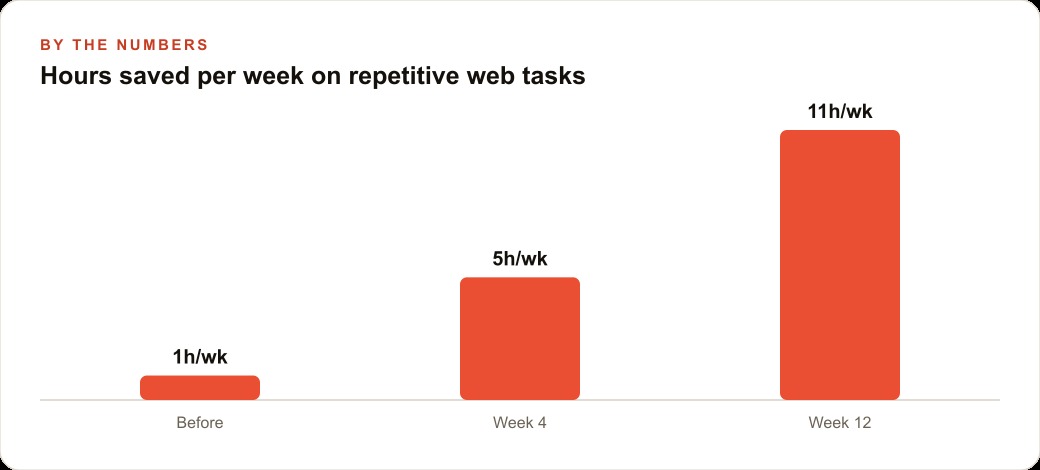
Three weeks after setup, four tasks were running on agent control without a human present. Order processing went from two and a half hours of daily manual work to a supervised thirty-minute review of what the agent processed, with a human approving the edge cases and exceptions rather than handling every order. The stock level check ran each morning before the buyer arrived, with the agent dropping a formatted summary into a shared channel. Tracking number transfer was fully automated. The inventory pull ran at 4 PM and the buyer received the spreadsheet update with no action required.
The numbers are illustrative but representative of the pattern. Fifty orders at three minutes each by hand is one hundred fifty minutes daily. The agent handles the straightforward ones, roughly forty of the fifty on a typical day, in the background. The buyer reviews the ten edge cases in about thirty minutes. Daily time savings on order management alone: roughly two hours. Annualized across working days, that is around five hundred hours of skilled labor redirected to higher-value work.
The tracking number transfer and inventory pull each freed forty-five minutes and twenty minutes respectively. The stock check freed thirty minutes. Total daily time recovered from four tasks: approximately three hours and thirty-five minutes.
The consistency argument is harder to measure but equally important. Before automation, tracking number transfers occasionally had the wrong number entered by a tired team member at the end of a long day, which triggered customer service tickets. After automation, the error rate on that specific task dropped to near zero, because the agent copies from source to destination without the possibility of fat-fingering a digit. The downstream cost of those corrections, in customer service time and in negative reviews from delayed shipment notifications, was real even though it was never totaled on a spreadsheet.
The store's owner now uses the same browser.js bridge as the starting point for any new web task the team identifies. The evaluation question has changed from "can we automate this?" to "how long will the skill.md take to write?" For simple, stable pages, the answer is usually an afternoon. For complex portals with lots of dynamic behavior, it might be a day. Either estimate is cheaper than the ongoing manual alternative.
Businesses that run Google Ads campaigns and need to pull reporting data out of the Ads interface and move it into an internal dashboard by hand face exactly this kind of browser chore. The browser.js bridge handles that category of task with the same command set: list the elements on the reporting page, read the numbers from the content, navigate to the dashboard, and update the record.
For teams running Facebook and Instagram ads who need to pull creative performance data from the Ads Manager and log it elsewhere manually, the automation case is identical. The agent reads the performance table, extracts the metrics, and transfers them without a human doing the tab-switching. The only thing that changes between use cases is the skill.md document describing the specific pages and the specific elements to interact with. The five commands stay the same. The browser.js bridge stays the same. Everything is already built, and a new use case is just a new skill document.
That is exactly what we do at AI DOERS. Book a private 30-minute call with Madhuranjan Kumar and we will map the fastest path to it for your specific business.
Book your call →
Madhuranjan Kumar
Madhuranjan Kumar brings 20 years of performance-marketing experience and has managed over $200 million in Facebook ad spend for brands across the United States and beyond. His expertise spans the full modern marketing stack: Meta, Google Ads, TikTok, email automation, CRM, and the websites that hold it together. At AI DOERS he turns that track record into lead-generation systems for businesses across every industry.