
Google AI Studio: The Free Gemini Playground Most People Underuse
Google AI Studio is a free playground for the Gemini models where you can prompt, compare models, force structured JSON output, call external tools, ground answers in Google Search, analyze a million tokens of text or video, and even fine-tune a model with no code.

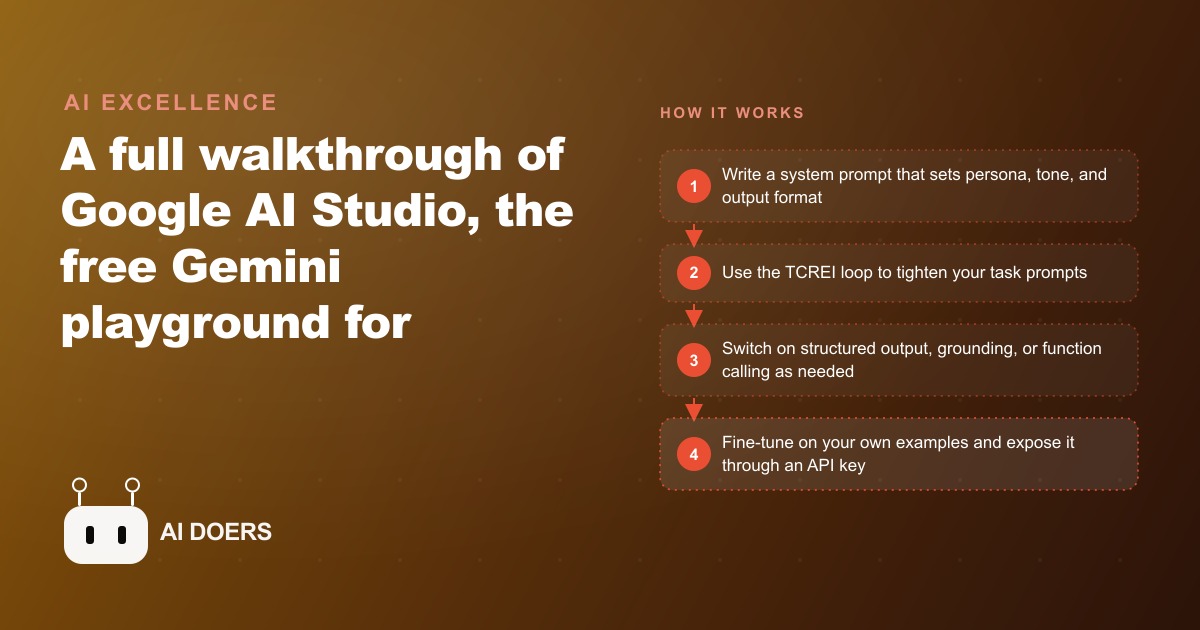
Most businesses never touch the settings that make Google AI Studio actually useful, and they end up treating a precision instrument like a chat box. I am Madhuranjan Kumar, and I have spent enough time inside this free playground to know that the difference between a useful workflow and a frustrating experiment almost always comes down to three things: a system prompt written before the first task, a structured prompt that follows a repeatable loop, and one or two toggles turned on that most people never notice. This guide covers exactly those things, in the order that makes the most practical sense to work through them.
Google AI Studio is the browser-based interface for the Gemini models. It is free for the vast majority of use cases. You can open it right now without a paid plan and you will have access to the same Gemini models that major companies are integrating into their products. The interface is genuinely dense the first time you open it, which is exactly why most people use only the chat box and ignore the rest. I want to walk through the six things that actually change what the tool can do for a real business, starting with the one that matters most.
Write a system prompt before sending a single task prompt
A system prompt is an instruction set that runs before every message in a session. It defines who the model is, what it is supposed to do, what tone it should use, what it should refuse, and what format its answers should take. Without one, every prompt you send is starting from scratch. The model has no memory of what kind of assistant it was trying to be, and the results are inconsistent by design.
The system prompt panel is on the left side of the Studio interface. It looks like a secondary text box, and a lot of people scroll past it. Do not. Writing a system prompt before you send anything else is the single highest-leverage habit you can build inside this tool.
A system prompt has three parts worth thinking about explicitly. First, the persona: who is the model in this context? An intake assistant for a plumbing company, a senior editor reviewing marketing copy, a calm research helper that cites its sources before making a claim. Naming the role shapes how the model interprets ambiguous instructions and what tone it defaults to. Second, the constraints: what is it not supposed to do? A customer-facing assistant should not make promises about pricing, timelines, or specific outcomes. Putting those limits in the system prompt means you are not hoping the model gets it right each time, you are telling it explicitly. Third, the output format: do you want prose, bullet points, a specific JSON structure, a numbered list? Specifying this in the system prompt means every response already arrives in the shape you need, without having to remind the model in every task prompt.
The persona layer does more than people expect. I once set up a persona as a calm intake assistant for a trade service business and ran the same chaotic, rambling message through it twice, once with the persona and once without. With no persona, the model tried to answer every implied question in the message and produced a long, exploratory paragraph. With the persona, it extracted the key facts, acknowledged the problem, and asked one clarifying question to confirm the address. The persona was not magic. It just gave the model a frame for deciding what was relevant.
For any recurring use case, you should have a saved system prompt. For each new one, write it first, before you send a single task.
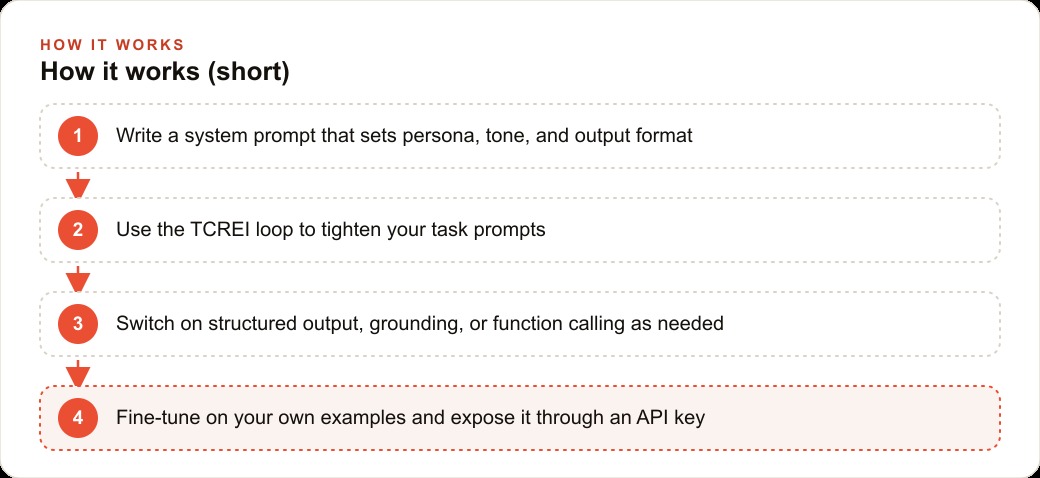
Use the TCREI loop to structure every non-trivial request
TCREI stands for Task, Context, Resources, Evaluate, Iterate. The mnemonic is Tiny Crabs Ride Enormous Iguanas if that helps it stick. The framework is simple enough to describe in a few sentences but changes results significantly when you use it consistently.
Task is the specific thing you want. Not help me with my emails but rewrite this email to be shorter, keep the ask in the final sentence, and remove the apology in the second paragraph. Context is the information the model needs to do the task well: who is the audience, what is the background, what does success look like. Resources are anything you can attach, a document, a transcript, past examples, a sample of the output style you want. Evaluate means reviewing the first response critically against what you actually needed, not just whether it sounds good. Iterate means telling the model specifically what to change based on that evaluation, rather than starting a new prompt from scratch.
The part that most people skip is Resources. They write a task and some context and then wonder why the model output does not match the style they were imagining. Giving the model two or three examples of the format, the tone, or the level of detail you want removes enormous amounts of ambiguity. Gemini's context window can hold a million tokens, which means you can attach entire documents, past examples, research files, or transcripts of real conversations and the model can reason across all of it without losing track of the earlier parts.
That one-million-token window deserves its own mention because it changes the scope of what you can ask. A standard context window of a few thousand tokens means you feed in excerpts and hope the model can reason from them. A million tokens means you can feed in a full year of customer emails and ask what patterns show up. You can give it the complete transcript of a sales call and ask it to identify the exact moment the prospect's tone shifted. You can hand it a 400-page technical manual and ask it to write a plain-language summary of the five sections most relevant to a specific question. That is a different kind of tool than what most people think of when they think of AI chat.
Use TCREI on anything non-trivial. For quick one-liners, do not overthink the structure. But for any task where the output needs to be reliable, repeatable, or specific, run through the loop before you send.
Run compare mode before committing a model to any recurring task
Google AI Studio lets you run the same prompt through two Gemini models at the same time and see the results side by side. This is the compare mode, and it is genuinely useful for something that sounds mundane: choosing the right model before you build anything around one.
The main choice inside Gemini is usually Flash versus Pro. Flash is faster. Pro is more thorough and often more careful with complex reasoning. For a task that runs once or twice, the difference barely matters. For a task that runs twenty times a day, or that feeds into a business process where errors are costly, that difference adds up. Compare mode lets you see the tradeoff on your actual prompts, against your actual use case, rather than relying on benchmarks that were not designed with your specific task in mind.
The practical workflow is straightforward. Write your system prompt, write a representative task prompt that includes a realistic input, then click compare and assign the two models you want to test. Read both outputs side by side and ask which one you would actually want to receive if you were the end user of this workflow. Run two or three different inputs through the comparison before deciding, because any single example might happen to favor one model for reasons that do not generalize.
For the plumbing company example I will walk through in the next section, I ran the same intake message through Flash and Pro to see which produced cleaner structured output with fewer unnecessary fields filled in as assumptions. Flash won on speed, and Pro produced one extra inferred field that was not in the original message, which would have been wrong and would have needed correction. For that use case, Flash was the right choice. For a task that involves long documents and nuanced reasoning, Pro would have been worth the slower response time. Compare mode makes that decision concrete instead of a guess.
Switch on structured output whenever the destination is a database, form, or spreadsheet
The default output from any language model is prose. Prose is useful for many things, but it is not useful when the output needs to go into a database field, a spreadsheet column, a form entry, or a downstream API. For those cases, structured output is the right setting, and it is available as a toggle in Google AI Studio.
When structured output is on, you define a JSON schema that describes the exact shape of the response you want. Field names, data types, required versus optional. The model then returns a clean JSON object matching that schema, every time, which means you can pipe the output directly into whatever system needs it without parsing prose or extracting values manually.
This is the feature that turns Google AI Studio from an interesting experiment into something that actually saves hours. Manual data entry is one of the most expensive and error-prone parts of most business operations. Structured output is a direct replacement for a significant portion of it.
Here is a concrete worked example with real numbers. A plumbing company runs thirty incoming service requests per day. With a human dispatcher handling each one by phone, taking notes, confirming details, and typing the job into the scheduling system, each intake call takes roughly six minutes of active handling time. That is three hours a day on intake alone, not counting callbacks when details are unclear or errors when a field gets mistyped under pressure.
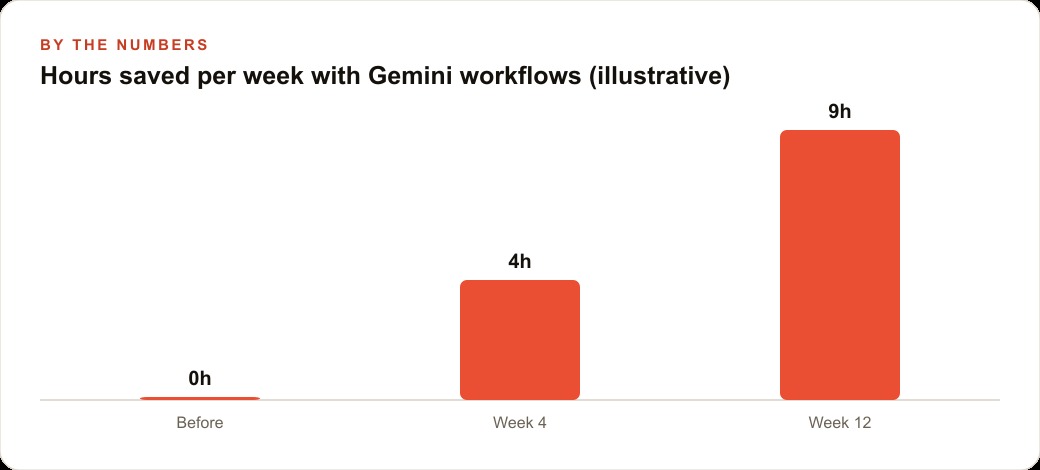
With Google AI Studio configured for this task, the process changes. The system prompt frames Gemini as a calm intake assistant for the plumbing company with a fixed, professional tone and clear limits on what it will and will not promise. Structured output is configured with five fields: customer name, street address, problem type, urgency level on a three-point scale, and preferred time window. Voicemail transcripts arrive, each one runs through this configuration, and the output is a clean job card. A caller who leaves a rambling message about no hot water and asks for someone by Thursday morning comes back as: name confirmed, address on Maple Street, problem type identified as water heater failure, urgency level high, time window Thursday morning. That job card drops straight into the scheduling software with no retyping. Grounding with Google Search is turned on for general questions, so if the same caller asks what typically causes low water pressure in an older home, the model can answer accurately from current plumbing resources rather than inventing specifics. Function calling is wired to the company calendar so the model can check real open slots and propose a specific appointment time instead of just acknowledging the request. Fine-tuned on two hundred past job tickets, the model has learned the company's own urgency categories. A water heater failure with no hot water in the home gets tagged as emergency and routed to the next available technician. A slow-draining shower gets tagged as scheduled and slotted for the end of the week. Those calls get routed correctly every time without a human judgment call. Intake handling time drops from six minutes per call to under one minute. At thirty incoming requests per day, that is two and a half hours recovered daily.
That saving compounds. Over a five-day week, two and a half hours per day is twelve and a half hours recovered. Over a month, it is fifty hours. At any realistic administrative labor cost, that number justifies the setup time many times over, and the tool itself is free.
Add grounding with Google Search for anything time-sensitive or factual
The most common complaint about language models is that they make things up. The technical term is hallucination, and it happens most often when the model is asked about something that either was not in its training data or has changed since the training cutoff. Grounding with Google Search is the setting in Google AI Studio that addresses this directly.
When grounding is turned on, the model can search the web and use live results to validate or supplement its answer. Instead of drawing purely from what it learned during training, it can pull current information and tell you where it came from. This does not eliminate all errors, but it significantly reduces made-up answers on topics that change frequently, such as current events, product specifications, prices, regulations, or anything that depends on knowing what happened recently.
For the plumbing company, grounding is useful for the customer-facing conversational layer. A homeowner might ask what typically causes low water pressure in a house built in the 1980s. That is a general knowledge question, not a specific job question, and a model with grounding can answer it accurately by pulling from current plumbing resources rather than inventing an answer. The system prompt keeps it from straying into making specific promises about what a technician will find or what the job will cost, but it can handle general informational questions accurately and without the dispatcher needing to field them at all.
Turn on grounding for any workflow where accuracy on current or changing facts matters. Leave it off for tasks that are purely transformational, like reformatting, summarizing internal documents, or extracting data from a transcript, because the additional web search step adds latency without benefit when all the information is already in the input.
Stream real time is worth noting here as a related feature. It lets the model watch your webcam or your shared screen and respond to what it sees in real time. For training, coaching, or any task where a live visual feed changes what the model should say, that capability is available at no cost. It is not part of most business automation workflows, but for anyone who wants a tool that can observe and coach a live process, it is worth exploring once the core features are comfortable.
Fine-tune on 100 to 500 examples when the task is specific enough to justify it
Fine-tuning is the last step and the most powerful one for a narrow, well-defined task. It is also the one most people assume requires a machine learning background. Inside Google AI Studio, it does not. The fine-tuning tab accepts a set of input-output pairs, runs the training process for you, and produces a tuned version of the model that you can then call through an API key.
The right time to fine-tune is when you have a task that is specific enough to be hard to describe in a system prompt alone, and when you have enough examples of correct behavior to teach from. The minimum is around a hundred examples. Five hundred gives you more reliable results on a wider range of inputs. If you have fewer than a hundred, improve your system prompt and your task prompts first before considering fine-tuning.
For the plumbing company, fine-tuning is applied to urgency categorization. The company has its own internal definitions of what counts as an emergency, a same-day job, and a scheduled appointment. Emergency is a burst pipe or a water heater failure with no hot water in the home. Same-day is a clogged main drain or a running toilet that has been running for more than twenty-four hours. Scheduled is anything cosmetic or slow-developing. Those categories are not obvious from a general description, and a general model makes mistakes on the edge cases, such as a slow leak under a sink that the homeowner has been living with for a week. Fine-tuning on two hundred past job tickets, each labeled with the correct urgency category by the dispatcher who originally handled it, teaches the model the company's actual standards rather than a generic approximation. After fine-tuning, the model routes correctly on the edge cases that the base model gets wrong, and the dispatcher can trust the categorization without reviewing every single entry.
The fine-tuned model is then exposed through an API key, which means it can be wired into the company's existing software without requiring anyone to open the Studio interface manually for each request. The Studio interface is for building and tuning. The API key is for deploying.
That is the full stack for a practical implementation: a system prompt that sets persona and constraints, TCREI-structured task prompts for consistency, compare mode to pick the right model before committing, structured output to produce machine-readable job cards, grounding for general customer questions that benefit from live facts, and fine-tuning to teach the model the company's own judgment calls. None of those steps requires writing code. All of them are available in the free Google AI Studio interface. The time investment is in designing the system thoughtfully, testing it on real inputs, and reviewing outputs before trusting them fully. The payoff is workflows that run reliably at scale, without adding headcount or paying for custom software that does a narrower version of the same thing. If you want a setup like this built and tuned around your own business data, so intake, routing, and reporting run without you configuring them yourself, that is the kind of work that belongs with someone who has already built it.
That is exactly what we do at AI DOERS. Book a private 30-minute call with Madhuranjan Kumar and we will map the fastest path to it for your specific business.
Book your call →
Madhuranjan Kumar
Madhuranjan Kumar brings 20 years of performance-marketing experience and has managed over $200 million in Facebook ad spend for brands across the United States and beyond. His expertise spans the full modern marketing stack: Meta, Google Ads, TikTok, email automation, CRM, and the websites that hold it together. At AI DOERS he turns that track record into lead-generation systems for businesses across every industry.