
Gemini Now Builds Slides Straight Into Google Slides
Google Gemini shipped slide creation that connects directly to Google Slides, generating decks with images and exporting them in one click. In a same prompt test against Claude on Sonnet 4.5, Gemini produced the more complete starting deck.


I am Madhuranjan Kumar. Gemini now builds a complete presentation and exports it directly into Google Slides in a single click, and I want to explain why that is worth your attention and how to actually use it alongside the Canva AI overhaul that shipped the same week. These two tools solve adjacent problems in the visual content workflow. Gemini handles full presentations. Canva handles everything else in the marketing asset stack. Understanding both, and knowing which one to reach for first on a given task, is the practical skill this week's releases make available.
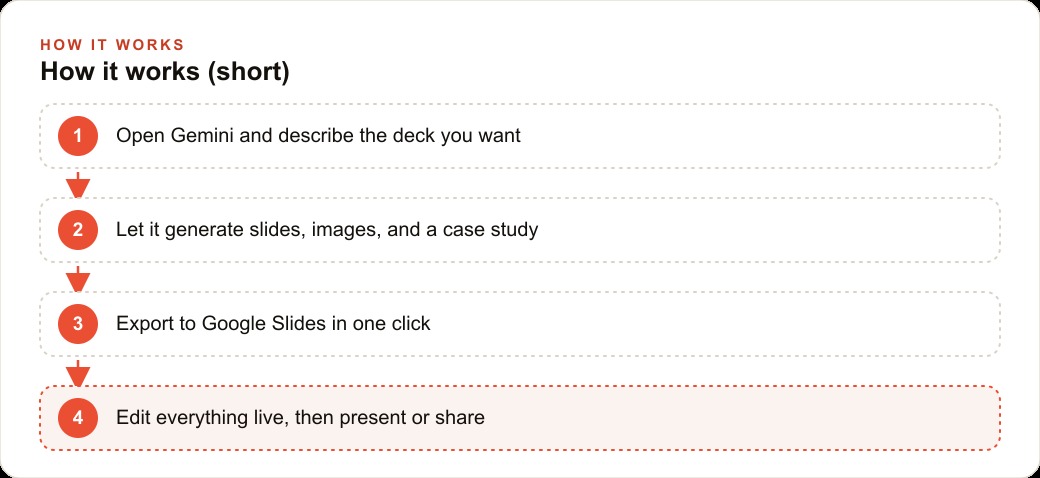
The Gemini slide feature works like this: you describe the deck you need, Gemini generates the slides, pulls in images, builds supporting sections like case studies and data summaries, and exports the whole thing to Google Slides in one click where every element stays editable. The loop from blank prompt to editable presentation runs in a few minutes rather than an afternoon. For anyone who regularly builds presentations as part of their job, that is a meaningful change in how the first two hours of a deck project feel.
The pattern across the industry is the same: big platforms keep folding the best standalone product ideas into the tools you already use. What used to require a separate specialty app and a learning curve now happens inside the chat window where you were already working. That convenience is not cosmetic. Removing a tool switch removes friction, and removed friction compounds across a whole team over weeks and months.
Here is how I would use these tools together to get a polished first-draft presentation in under twenty minutes, then extend that investment to cover the week's marketing assets.
Write one paragraph style brief before you touch any generation tool
The mistake most people make with AI presentation tools is going straight to the generation step without defining what the output should look and sound like. The model fills that gap with its defaults. The deck comes back looking like a corporate template with generic phrasing, and then you spend forty minutes editing out the generic parts. That editing time is often longer than the time you would have spent writing the deck with a clear brief to start from.
Before I open Gemini or Claude for any presentation, I write one paragraph that answers three questions: what is the single argument this deck is making, who is sitting in the room when it gets presented, and what should the tone feel like. For a sales presentation to an operations director at a logistics company, that paragraph might read: this deck makes the case for switching to our routing software, the audience is practical and numbers-focused, and the tone should be confident and direct, with every claim backed by a specific figure.
That paragraph takes three minutes to write. It radically narrows the space the model works in, which means the first draft comes back much closer to what the business needs. Editing time drops from forty minutes to ten or fifteen. The net time to a client-ready draft is lower even though the process now includes an extra step. I treat this brief as the fixed first step of every presentation workflow, regardless of which tool generates the draft.
Run the same prompt through Gemini and Claude in parallel to calibrate your defaults
The most useful thing you can do before committing to a default presentation workflow is run the same prompt through both Gemini and Claude and compare the outputs. This calibration costs about ten minutes and pays back on every future project.
The head-to-head test reveals something practical: the two tools have genuinely different strengths. When the same playful prompt ran through Claude on Sonnet 4.5 and through Gemini, both produced usable starting decks with different characteristics. Claude produced a clean PowerPoint with a real graph and a well-structured testimonial section. Strong data visualization, tight narrative structure, no generated imagery but a solid base for any deck where numbers are front and center. Gemini generated an actual image for the cover slide, added a case study section, used a more visually playful design style, and pulled supporting images from across the web rather than generating them all from scratch. One click exported the whole thing to Google Slides where every element stayed editable.
Neither tool is universally better. Gemini is better when the audience expects visual richness and the content benefits from generated imagery sitting alongside the text. Claude is better when the data needs to be front and center and the deck's credibility depends on how the numbers are displayed. After three or four comparisons on your actual work, the pattern becomes obvious. A business that builds data-heavy client reports defaults to Claude. A business that builds pitch decks for consumer products defaults to Gemini. The calibration investment pays back immediately.
Let Gemini handle the complete first deck when visual richness is what the audience expects
For decks where visual impact matters as much as the content itself, Gemini is the right starting tool. The images it generates alongside the slides remove the step where you would otherwise search for stock photography or placeholder visuals, which is frequently the most time-consuming part of building a deck by hand.
The workflow is: paste the style brief, describe the deck, let Gemini run. The output is a complete deck with layout, text, images, and structure already in place. Export to Google Slides in one click. From that point, every edit happens in a tool you already know, and the work is refinement rather than construction. The slides are editable individually, the images are replaceable, and the text is overwriteable at every level. Nothing Gemini produced is locked in.
The most important step after export is verifying that the factual claims in the deck are accurate. Gemini fills slides with plausible information but does not check specifics against your actual data. Any number, client reference, or claim that matters to your audience needs a human pass before the deck goes anywhere. The structure and the visual layer are solid from the first draft. The content layer needs verification. That check takes ten to fifteen minutes for a typical business deck and should never be skipped.
Export to Google Slides in one click and own every edit from that point
The one-click export solves a friction point that made earlier AI presentation tools less useful in practice. When you had to copy-paste generated content into a slide deck manually, you reintroduced most of the manual work the generation was supposed to eliminate. The direct export means the model produces a format you can work in immediately, inside a tool your team already knows.
Once the deck is in Google Slides, treat it as yours. Do not approach it as a model output you are curating. Rewrite the text on any slide where the phrasing does not match how your business talks. Replace generated images with real photography when you have it. Add the actual client data to replace any illustrative numbers the model inserted as placeholders. The model's contribution is the structure, the layout, and the first-pass content. Your contribution is the accuracy, the voice, and the specifics that make the deck credible to your actual audience.
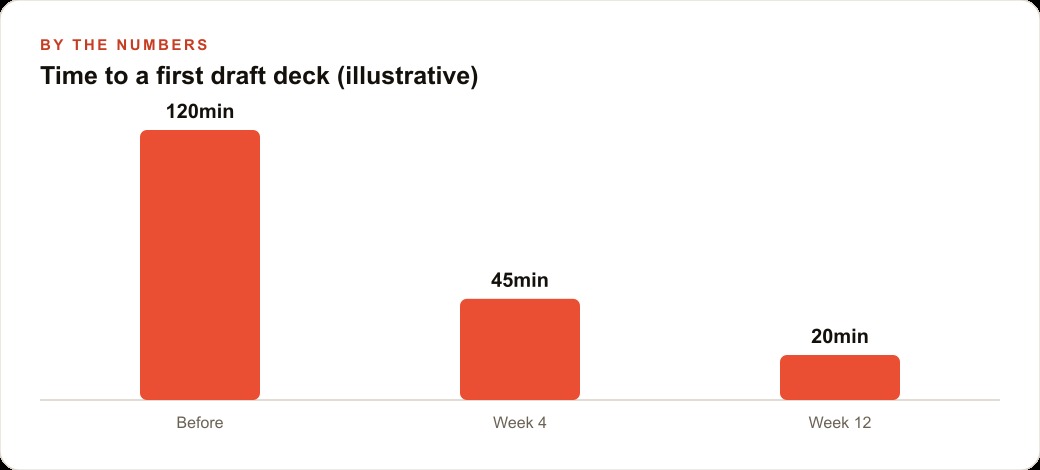
Editing time for a well-generated first draft runs about fifteen to twenty minutes for a ten to twelve slide deck, assuming the brief was specific enough. That compares to ninety to one hundred twenty minutes to build the same deck from a blank slide. The time savings is real and it compounds for a team that builds decks regularly.
Set up a Canva brand kit once so every asset the team touches comes out consistent
The Canva brand kit is the most underused feature in the current AI creative toolkit. You set the primary and secondary brand colors, upload the logo in its correct forms, and specify the fonts the brand uses. Every AI generation inside Canva after that automatically applies those elements. A single prompt returns several on-brand variants to choose from, and none of them require anyone on the team to remember the hex code for the brand blue or hunt for the correct version of the logo file.
Setup takes about two hours the first time: documenting the color values, gathering the logo files in their various forms, and entering the font names. That investment pays back within the first week for any team producing more than one marketing asset per person per day. The payback is not just time. It is consistency. Every flyer, social card, and event banner that comes out of Canva looks like it was made by the same hand, which builds the visual coherence that makes a brand feel established and intentional rather than assembled from whatever template was available that day.
I would treat the brand kit setup as a prerequisite rather than an optional enhancement. Running AI generation without the brand kit produces on-theme output that may or may not match the brand depending on how the model interprets the prompt. Running it with the brand kit produces on-brand output every time, which is the difference between a useful tool and a reliable one.
Stay inside the new Canva AI surface when you want the edit made, not explained
Canva shipped two distinct AI surfaces in its overhaul, and the distinction between them matters for getting value from the tool.
The new Canva AI edits your design. You describe the change you want, and it makes the change. Resize a headline, shift the layout, change a background color, add an element: the AI does it and the design updates in front of you.
The older in-editor assistant describes how to make the edit. It tells you what steps to follow and expects you to execute them yourself.
If you open Canva and ask the AI to make the headline larger and change the background to dark blue, the result depends entirely on which surface you are using. In the new Canva AI, the change happens. In the older in-editor assistant, you get a paragraph explaining the manual steps.
The practical rule: use the new Canva AI when you want the change made for you. Use the older assistant only when you want to learn the manual technique for something specific. Most business use cases fall in the first category. Bookmark the new Canva AI and default to it. If a prompt returns instructions instead of edits, you are in the wrong surface, and the fix is to switch surfaces rather than rewrite the prompt.
The concrete example: a ten-person sales team recovering twenty hours per week
To put real numbers on what this workflow change means, consider a sales team of ten people where each person builds one presentation per week.
Before the AI tools, each deck takes an average of three hours: one hour sourcing visuals and building the slide structure from scratch, one hour writing and editing the content, and one hour of revision after internal review. Ten people, one deck each, three hours per deck: that is thirty hours of staff time per week spent on presentation production. At a conservative value of fifty dollars per selling hour, thirty hours of time diverted to deck-building represents fifteen hundred dollars per week in opportunity cost, time that could have gone to calls, proposals, and follow-up.
After the workflow described above, the process looks substantially different. The style brief takes three minutes. Gemini or Claude generates the first draft in four to six minutes. Export to Google Slides and human editing of content and accuracy: twenty minutes. Final review and revision based on internal feedback: fifteen minutes. Total per deck: roughly forty to forty-five minutes. For ten people: approximately seven to eight hours per week.
The shift from thirty hours to seven or eight hours recovers more than twenty hours of selling time per week across the team. At fifty dollars per selling hour, that is over one thousand dollars per week returned to revenue-generating activity. In a month, four thousand dollars in recovered selling time. From tools that either cost nothing extra on plans the business likely already holds, or carry low monthly subscription costs.
The secondary benefit is quality consistency. When each person builds decks from scratch, quality varies based on individual design skill and available time that day. When everyone runs the same workflow with the same brief template and the same brand kit, the quality floor rises and the variation shrinks. Clients receive more consistent materials, which builds trust that is hard to quantify directly but visible in how often they return for the next project.
The Canva brand kit extends this consistency to every other marketing asset the team produces: the follow-up one-pager, the event card, the social graphic that promotes the same product the deck pitches. One setup investment, consistent output across every surface where the brand appears. That is the full picture of what this week's releases make possible when both tools are used together rather than in isolation.
That is exactly what we do at AI DOERS. Book a private 30-minute call with Madhuranjan Kumar and we will map the fastest path to it for your specific business.
Book your call →
Madhuranjan Kumar
Madhuranjan Kumar brings 20 years of performance-marketing experience and has managed over $200 million in Facebook ad spend for brands across the United States and beyond. His expertise spans the full modern marketing stack: Meta, Google Ads, TikTok, email automation, CRM, and the websites that hold it together. At AI DOERS he turns that track record into lead-generation systems for businesses across every industry.