
Cursor 2.0 for Beginners: Build and Ship Real Apps With AI
Cursor 2.0 is a full IDE that runs on your laptop, so your code stays yours and you can build anything from a landing page to a mobile app. The release adds an in-editor browser, agents that read your live page, and parallel agents on one task.

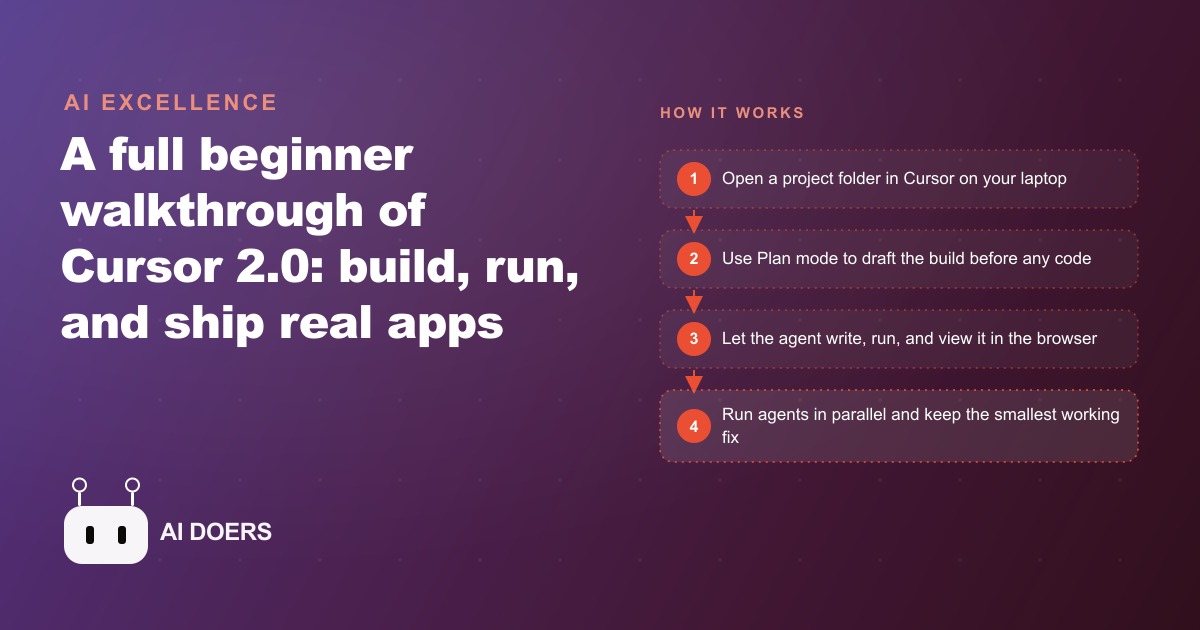
Cursor 2.0 Turned a Code Editor Into a Complete Development Environment
The version 2.0 release did not add features around the edges of an existing product. It changed what the product fundamentally is. Cursor was already a capable AI code editor, essentially VS Code with an AI agent built into the sidebar. The 2.0 release added three things that together cross a threshold: an in-editor browser that can screenshot and read a live page, parallel agents that work on the same task simultaneously, and a Plan mode that refuses to write code until it has asked the questions that surface what you actually need. Each of those features is useful on its own. Together they remove the main friction points that separated AI-assisted editing from a complete development loop, and that distinction matters for anyone deciding where to learn to build.
The comparison to browser-based AI coding tools is worth making directly because the market has fragmented in that direction. Platforms that let you describe an app and watch it generate in the browser have attracted a large audience of non-developers building their first tools. Cursor competes for some of that audience, but it is not the same category. Cursor is a local IDE that runs on your machine, stores your code in a folder on your hard drive, and can build anything that code can build: mobile apps, desktop tools, scripts that run against your own data, games, embedded systems. The browser platforms can build a subset of that and hand you a hosted version of it. Cursor hands you the code itself and lets you deploy it anywhere, export it to a developer, or iterate on it without asking a platform for permission.
The In-Editor Browser Closes the Most Expensive Feedback Loop in AI Coding
Before this release, the feedback loop for an AI-assisted web build looked like this: generate code, save, switch to a browser, refresh, observe the problem, switch back to the editor, describe the problem in words, generate a fix, repeat. That sequence is manageable when the problem is clearly describable in words. It breaks down when the problem is visual and layout-specific. Describing that a flex container is overflowing on a certain screen width in certain conditions is possible but imprecise, and imprecision in the description of a bug produces imprecision in the fix.
The in-editor browser eliminates the window-switching part of that loop and adds something more significant: the ability to type at-browser and have the agent screenshot the live page directly, identify the element causing the problem, and fix it in the same pass. The agent is not working from your description of what looks wrong. It is looking at the same thing you are. For layout bugs, overflow issues, and responsive breakpoint problems, that observation capability produces more precise fixes in fewer iterations than any amount of verbal description.
The practical constraint worth knowing is context cost. Each at-browser call consumes a meaningful portion of the model's available context window because it is processing an image alongside the code. Using it for every small change is inefficient. The right pattern is to reserve it for the bugs you cannot describe accurately in words: the overflow that only appears at a specific width, the element whose rendered position differs from what the CSS implies, the interaction that behaves correctly in isolation and wrong in combination. For everything else, a precise verbal description is faster and more context-efficient.
The browser feature requires Google Chrome and opens a tab inside the editor that connects to the localhost server your project is running on. Getting it set up takes about two minutes once Chrome is installed. After that it is always available as a tool the agent can call without leaving the editor environment.
Plan Mode Changes Output Quality Before a Single Line Is Written
The most consequential feature in the 2.0 release is also the least visually striking. Plan mode, accessed by cycling through Cursor's three modes with Shift and Tab, does exactly what the name implies: it asks clarifying questions and drafts a plan before writing any code. The mode refuses to start generating until it has a clear enough picture of the requirements to build correctly.
That behavior addresses the most common source of rework in AI-assisted builds. When someone describes an app in a single message and lets the agent start coding immediately, the agent makes assumptions about everything the description did not specify. What happens when a form is submitted with invalid data. How the mobile layout differs from the desktop layout. Whether authentication is required. Which error states need visual treatment. Those assumptions produce code that is coherent but wrong in the ways that require the most effort to fix, because fixing them after the structure exists often means reworking the architecture rather than adjusting the surface.
Plan mode surfaces those questions at the start, before any code exists. The agent asks what the app is for, who uses it, what the edge cases are, how the design should behave on mobile, whether the visual style should match an existing brand. The questions take two to five minutes to answer and typically catch two or three overlooked requirements that would each have caused a rebuild if discovered at hour three of a build session. That is not an abstraction. It is a concrete time saving that compounds across every build you run, because the quality of what comes out of the plan pass directly determines how much iteration happens after.
I think of Plan mode as the feature that separates Cursor from tools that are impressive for demonstrations and frustrating for sustained production work. Demonstrations favor immediate generation because speed looks good in a screen recording. Sustained production work favors the mode that gets the requirements right before writing a word of code, because rework is the most expensive thing in software and most of it is caused by requirements that were not specified at the start.
Parallel Agents Turn a Stubborn Bug From a Waiting Game Into a Parallel Race
When a bug resists two or three targeted fix attempts, the standard workflow becomes a guessing game. Try an approach, wait for the generation, apply the change, test it, find it did not work, undo it, and try a different approach. Each cycle takes the same amount of time regardless of whether the fix succeeds, and complex bugs often require several cycles before landing on the correct diagnosis.
Parallel agents change that dynamic by running multiple agents on the same problem simultaneously. Cursor 2.0 can dispatch Composer, Claude Sonnet, and Codex in parallel on the same stubborn issue, with each agent taking a different approach. When they finish, you apply and test each one's changes sequentially and keep the one that works. The total time to resolution is roughly the time of the slowest agent, rather than the sum of all the attempts run in sequence.
The practical selection criterion for keeping a fix is important: take the one that works with the fewest lines of code changed. More changed lines mean more surface area for new bugs to hide in, more deviation from the codebase's existing patterns, and more code to maintain going forward. A fix that changes three lines and solves the problem is almost always preferable to a fix that changes twenty lines and solves the same problem, even if both pass the immediate test. The minimum viable change is the safest change in a codebase you plan to keep iterating on.
Parallel agents require a git repository and the Max plan. Neither requirement is heavy. Setting up git takes five minutes for a first-time user and adds the collateral benefit of version history, which means you can always roll back to a working state if an agent's changes make things worse. For anyone building tools they plan to iterate on over weeks or months, having that safety net is worth having regardless of the parallel agent feature. The Max plan is a meaningful cost step up from the standard pro plan, so for simpler projects where bugs resolve quickly on first attempt, staying on the standard plan and reserving the Max plan for complex builds is a reasonable approach.
Local Code Ownership Has a Compounding Advantage That Hosted Tools Cannot Match
The most undervalued property of building in Cursor is that the code lives on your machine in a folder you control. This sounds like a technical detail but it has cascading practical implications. You can drag and drop any file into the project. You can use any library that exists, not just the ones a hosted platform has pre-approved. You can deploy to any server, any provider, any hosting arrangement you choose. You can hand the folder to a professional developer and they can open it in their own environment without any export step. You can commit it to version control and have a full history of every change made by every agent. You are never one platform policy change away from losing access to your own work.
The hosting lock-in on browser-based tools is real and it accumulates gradually. You build something useful, it grows, you add features, and at some point migrating to a different setup becomes expensive because the tool has become dependent on the platform's specific quirks, routing conventions, and hosting assumptions. Starting in a local IDE avoids that accumulation. The project is portable from day one because it was never tied to a platform to begin with.
For a small business owner building tools for internal use, this portability means the tools you build can outlive any particular AI service. The HTML file, the Python script, the simple web app with a database: these are assets you can keep, modify, and hand off on your own terms. The AI that wrote them is a means to the asset, not the custodian of it.
The Skill Transfer Goes One Direction, and That Asymmetry Matters for Where to Start
I want to close on a point that is easy to miss when evaluating which tool to start with. The skills built in Cursor transfer broadly. Someone who learns to use Cursor, to navigate a file system, to run commands in a terminal, to manage a project as a folder with real files, to read an error message and describe it precisely, can move to Replit, Lovable, Bolt, or any other AI coding tool and be productive quickly. The IDE concepts are universal. The agent interaction patterns are transferable. The mental model of a project as a folder containing files is the mental model that underlies all of them.
The reverse is not equally true. Someone who builds exclusively in a browser-based tool, where the file system is abstracted away, where deployment is automatic, where terminal access is optional, has learned a specific platform's conventions more than transferable development fundamentals. Moving from that environment to a local IDE later involves learning the file system, the terminal, the project structure, and the deployment process for the first time, while also trying to ship something. That combination is significantly harder than learning Cursor first and adding familiarity with a browser tool second.
This asymmetry does not make browser-based tools bad. They have real advantages for specific use cases: fast prototyping, sharing live demos, building without any setup. The point is about where to invest the learning time that has the most downstream value. Cursor's foundation transfers forward to more environments, which means the hours spent learning it pay out across more future contexts than the same hours spent learning a platform-specific tool. For a business owner who expects to keep building and iterating on tools over the next several years, that transferability is worth factoring into the decision of where to start.
The Concrete Move: Install Cursor, Learn the Three Modes, Set Rules Before You Build Anything
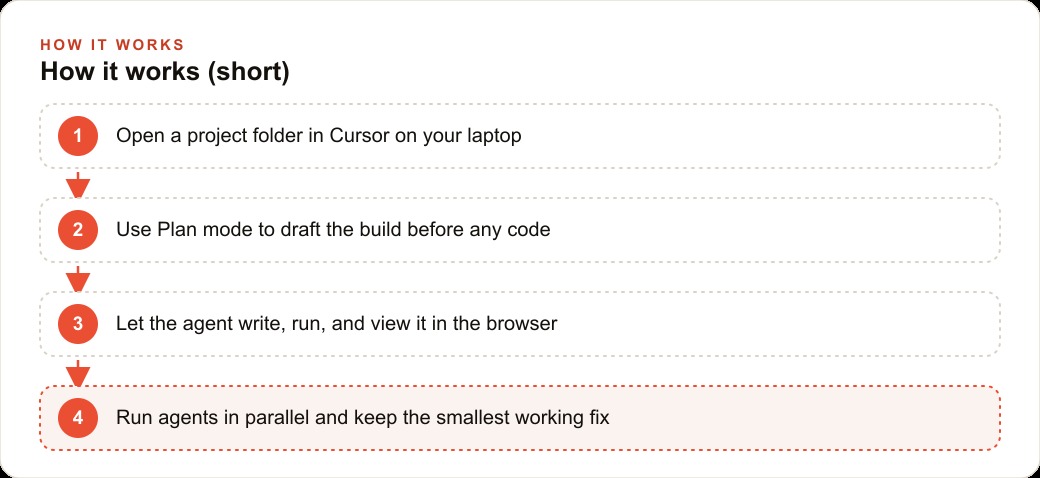
The practical entry point is narrower than most beginner guides suggest. Install Cursor, open a folder as your first project, and before generating a single line of code, spend fifteen minutes learning the three modes: Ask for questions that need an answer, Agent for builds where you want the AI to write and run code, and Plan for anything that will take more than thirty minutes to build. Setting a project rule with Control Shift P before the first build, banning the default AI aesthetic of blue gradients and rounded cards, and specifying your exact color and typography preferences, takes five minutes and prevents the most common reason a first build has to be partially rebuilt: the output looking like a demo rather than a real business tool.
After that the learning curve is shorter than it looks. The first build takes the longest, the second takes noticeably less time, and by the third or fourth build the patterns become automatic. The investment in learning Cursor once is the investment that pays out on every tool you build afterward, and with the 2.0 release the environment is capable enough that there are very few things a small business owner would want to build that fall outside what it can handle.
That is exactly what we do at AI DOERS. Book a private 30-minute call with Madhuranjan Kumar and we will map the fastest path to it for your specific business.
Book your call →
Madhuranjan Kumar
Madhuranjan Kumar brings 20 years of performance-marketing experience and has managed over $200 million in Facebook ad spend for brands across the United States and beyond. His expertise spans the full modern marketing stack: Meta, Google Ads, TikTok, email automation, CRM, and the websites that hold it together. At AI DOERS he turns that track record into lead-generation systems for businesses across every industry.