
Cmux: The Free Open-Source Terminal Built for Running AI Agents in Parallel
Cmux is a free, open-source, native macOS terminal designed to run several AI coding agents at once, with workspaces, splittable panes, an integrated browser, and one orchestrator agent that can drive the terminal itself.

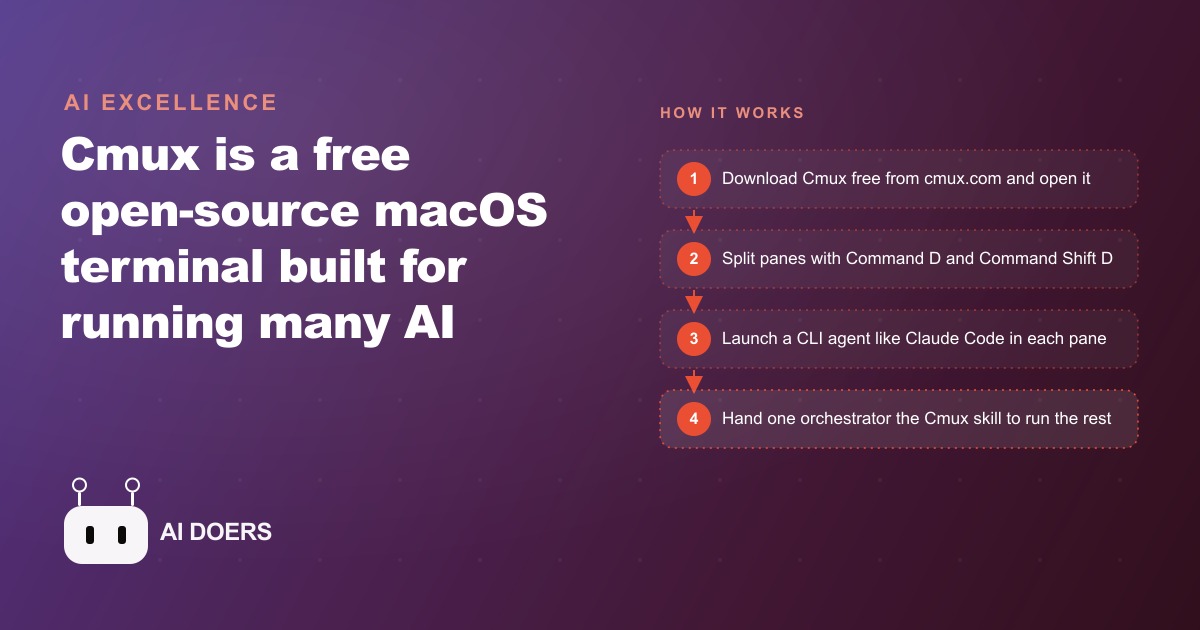
Running one AI coding agent is table stakes. Running three in parallel while an orchestrator manages the split is where the real speed advantage lives. I am Madhuranjan Kumar, and Cmux is the free, open-source macOS terminal that makes parallel agent work practical rather than chaotic. This is the complete setup guide: six stages from first launch to running your first real parallel task.
Stage 1: Download, open, and orient yourself in the three core concepts
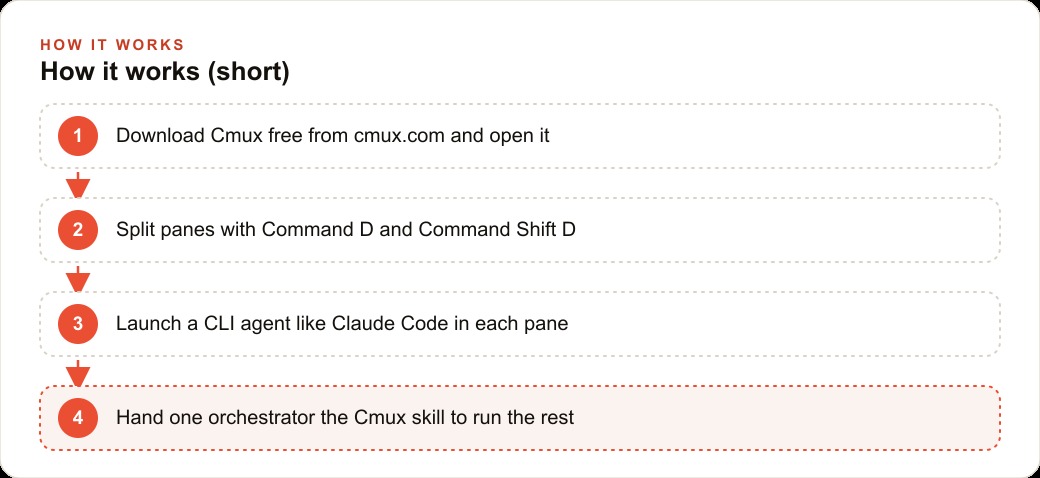
Cmux is available free at cmux.com. Click the download button, open the application, and you are in the terminal. The first session should focus entirely on understanding three concepts before touching any agent or project work, because the concepts are the mental model the rest of the tool is built on.
The first concept is workspaces. A workspace is a named container for a single project or topic. Workspaces appear as entries in the left sidebar. When you switch between workspaces, every pane, session, and browser surface inside the workspace is exactly as you left it, ready to resume without any context loss. If you are working on three client builds simultaneously, you create three workspaces and name them clearly. Everything related to one client's build lives inside that workspace and is visually and functionally separated from every other project.
The second concept is panes. A pane is a split section inside a workspace. Each pane runs its own independent shell session. The keyboard shortcut to split a pane to the right is Command D. The shortcut to split a pane downward is Command Shift D. These two shortcuts are the primary navigation vocabulary for building the workspace layout. You resize any pane by dragging the divider between them, and you close a pane by closing its shell session. Build a two-by-two grid of four panes in four keystrokes.
The third concept is surfaces. A surface is a tab inside a pane. Surfaces are the feature that most differentiates Cmux from standard terminal emulators. A surface can be either a terminal session or a full integrated browser window. That browser surface is the feature worth pausing on: it means your agent can open the web application it just built and you can review it without leaving the terminal. The debugging loop stays inside one tool.
Spend the first 20 minutes navigating the sidebar, splitting panes, closing them, switching between surfaces, and getting the keyboard shortcuts into muscle memory. The rest of the workflow depends on this foundation being automatic rather than effortful.
Stage 2: Create your first real project workspace and build a working pane layout
Open a new workspace for your current active project. Name it after the project clearly, not "workspace 1" or "new project." A name you can read at a glance when you switch between workspaces reduces the cognitive friction of managing multiple active projects.
Inside the workspace, decide on your pane layout before you start any agent. The layout decision is about what you need to see simultaneously during active work. For most development projects, a practical starting layout is: two panes across the top (code agent left, test output right), one browser surface across the bottom spanning the full width. This layout gives you the agent output and the test results side by side at eye level, with the visual result visible below without switching applications.
Build that layout using Command D to split right and Command Shift D to split down. Navigate between panes with a click or with whatever focus-switching shortcut is comfortable. Open a browser surface in the bottom pane by creating a new surface within that pane and selecting browser rather than terminal.
The layout does not need to be complex to be effective. Two panes with one browser surface handles the majority of real project work. The value of deciding on the layout before starting any agent is that you are thinking about workflow rather than reacting to it. A workspace laid out intentionally is easier to navigate during fast-moving agent work than one that accumulated panes arbitrarily.
Stage 3: Assign one agent to each pane with a clearly bounded scope
The most common mistake in parallel agent work is running multiple agents without clearly defining what each one is responsible for. When two agents can both modify the same files, they will conflict. When an agent's scope is undefined, it makes scope decisions on its own, and those decisions may not align with what the other agents are doing.
Before you launch any agent, write a one-paragraph scope definition for each pane. The scope definition answers: which files or directories this agent is responsible for, which files it is explicitly not allowed to touch, what the specific deliverable is for this work session, and what it should do when it finishes a task and is waiting for your input.
Launch the agent in each pane and open each session with the scope definition as the first message. A Claude Code session that starts with a clear scope is significantly more reliable than one that starts with an open-ended task description, because the scope tells the agent where the boundaries are before it starts making decisions.
Keep scopes non-overlapping for any files that both agents might need to read or modify. If one agent is responsible for the frontend React components and another is responsible for the API routes, they can work in parallel safely because their file domains do not intersect. If both agents need to modify the same configuration file, one of them needs to finish that modification and commit it before the other touches it.
The scope definition is a five-minute investment per agent per session. It consistently prevents the 30-minute debugging session that comes from two agents that made incompatible changes to the same file simultaneously.
Stage 4: Add a browser surface for live preview and wire it to your dev server
The browser surface in Cmux is the feature that collapses the most context-switching out of a typical development session. Open a new surface in your preview pane and set it to browser mode. Point it at your local development server URL, typically localhost:3000 or whichever port your project runs on.
Start your development server in one of your terminal panes. Once it is running, your browser surface will show the live application. Every time an agent modifies a file that triggers a hot reload, the browser surface updates automatically. You see the change without switching to a browser application.
The practical benefit is that reviewing agent output is a glance down rather than an application switch. Application switching has a cognitive cost that compounds when you are supervising multiple agents. Each switch breaks your mental focus on the agent session you just left. With the browser surface open in the same workspace, you review the visual result, decide whether it matches what you wanted, and type the next instruction, all without leaving the Cmux window.
Configure the browser surface to display at the viewport width most relevant to your project. If you are building a mobile-first interface, resize the browser surface to 375 pixels wide. If you are building a desktop dashboard, leave it at the full pane width. The ability to check responsive behavior without opening browser developer tools and manually changing the viewport is a small efficiency that adds up across a session.
Stage 5: Write the orchestrator skill file and launch a coordinating agent
The orchestrator pattern is the most powerful working mode that Cmux enables and the one that makes the human in the loop feel like a project lead rather than a terminal janitor. An orchestrator agent drives the terminal itself, including splitting panes, launching agents in each pane, assigning tasks, and monitoring completion. You talk to one agent. That agent manages the rest of the team.
The orchestrator pattern requires a skill file. A skill file is a short document that teaches the agent the Cmux-specific commands it needs to operate the terminal. The file should describe: the keyboard shortcuts for splitting panes (Command D and Command Shift D), how to open a browser surface, how to navigate between panes, and the format for launching a new agent in an empty pane.
Write this file in your project directory and name it cmux-skill.md. Include a brief description of the workspace layout the orchestrator should create for a standard project, along with the scope assignment template it should use for each sub-agent. The file does not need to be long. Two pages of clear, specific instructions is enough to give the orchestrator what it needs.
Once the skill file exists, open a pane for the orchestrator agent, start a Claude Code or equivalent session, and share the skill file as context at the beginning of the session. Then give the orchestrator a project brief: here is what we are building, here are the three main components, create a pane for each one, assign each component to a separate agent with a clear scope, and report back to me when each one has a result to review.
The orchestrator does the workspace setup, the pane creation, and the initial task assignments. You review completed sections as each sub-agent finishes rather than babysitting each one through its work. The ratio of your input to agent output shifts significantly in your favor.
Stage 6: Run your first real parallel task and use the notification system to stay in flow
With workspaces set up, panes laid out, agents scoped, the browser surface active, and the orchestrator wired, run your first real parallel task: something with at least two independent components that can be built simultaneously.
A good first parallel task is a page with a data display section and a user input section. Assign one agent to build the data display and a second agent to build the input form. Both can work simultaneously because neither needs the other's output to start. While they work, your job is to be available to answer questions, not to watch them run.
This is where the Cmux notification system becomes essential to your flow. Cmux highlights the pane you are currently focused on and outlines a pane in a distinct color the moment its agent completes a task and is waiting for input. The keyboard shortcut Command Shift U jumps directly to the pane whose agent most recently finished, even if that pane is in a different workspace.
In practice, the workflow is: give both agents their tasks, then do your own work or review in the browser surface. When a pane gets outlined, you know an agent is done. Command Shift U takes you directly to it. You review the output, approve it or give the next instruction, and Command Shift U takes you to the next agent that finished. You are never searching for which agent needs attention. The terminal tells you.
On a first parallel task, two agents working on independent components of a page will typically finish at different times, with one usually finishing faster. That agent will be outlined and waiting while the second agent is still working. Use the time while the second agent runs to review the first agent's output thoroughly, test it in the browser surface, and have the next instruction ready. When the second agent finishes, your review of the first is complete and you can give each of them their next task immediately.
Worked example: a SaaS app built in two hours instead of six
A developer building a SaaS productivity tool with a dashboard, a settings page, and an API integration layer estimates the work at six hours of sequential agent sessions: two hours per major section, done one at a time. The reason the estimate is six hours is that sequential work means waiting for each section to be done before starting the next, with the overall duration determined by the longest chain of dependencies.
With Cmux and three parallel agents, the session looks different. The developer opens one workspace for the project and splits it into a two-by-two grid. The top left pane runs a Claude Code agent responsible for the dashboard layout and data display components. The top right pane runs a second agent responsible for the settings page and user preferences logic. The bottom left pane runs a third agent responsible for the API integration layer, specifically the fetch logic, error handling, and the hooks the dashboard and settings page will consume from it. The bottom right pane is a browser surface pointed at the development server.
The orchestrator assigns all three tasks simultaneously after the developer provides a brief project spec. All three agents start working at the same time.
The API integration agent finishes first, at about 45 minutes, because its scope is well-defined and does not require visual decision-making. Its pane gets outlined. The developer reviews the API hooks, confirms they match the interface the other two agents are expecting, and marks them approved. The dashboard agent finishes at about 70 minutes. Review shows the layout is correct and the data display pulls from the API hooks the third agent built. The settings page agent finishes at 90 minutes. Review is clean.
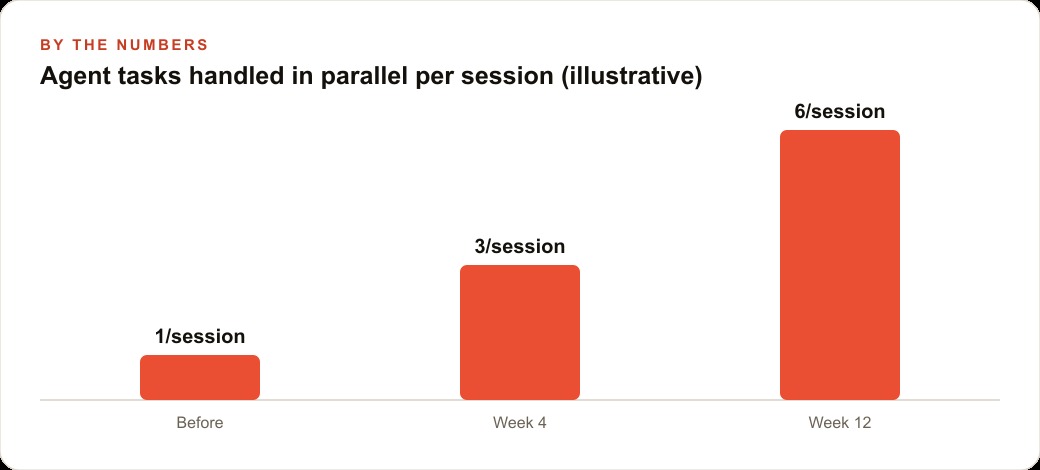
Total elapsed time: 90 minutes of agent running time, plus roughly 30 minutes of the developer's review and instruction time distributed across the session. Total session duration: about two hours. Sequential approach estimate: six hours. The parallel approach is faster not because any individual agent works faster but because the waiting time for each section is used by the other sections. The constraint shifts from agent speed to human review speed, and human review of three finished sections is faster than six hours of sequential production.
The key discipline that made this work: scopes were written before any agent started, the orchestrator handled task assignment without the developer micromanaging each pane, and the notification system meant the developer was never searching for which agent needed attention. Those three practices together are what the time saving depends on.
That is exactly what we do at AI DOERS. Book a private 30-minute call with Madhuranjan Kumar and we will map the fastest path to it for your specific business.
Book your call →
Madhuranjan Kumar
Madhuranjan Kumar brings 20 years of performance-marketing experience and has managed over $200 million in Facebook ad spend for brands across the United States and beyond. His expertise spans the full modern marketing stack: Meta, Google Ads, TikTok, email automation, CRM, and the websites that hold it together. At AI DOERS he turns that track record into lead-generation systems for businesses across every industry.