
ChatGPT in PowerPoint: The Free Add-In That Builds Editable Decks
OpenAI shipped a free ChatGPT add in for PowerPoint that builds fully editable decks from one prompt. Here is how it works and a gym example.

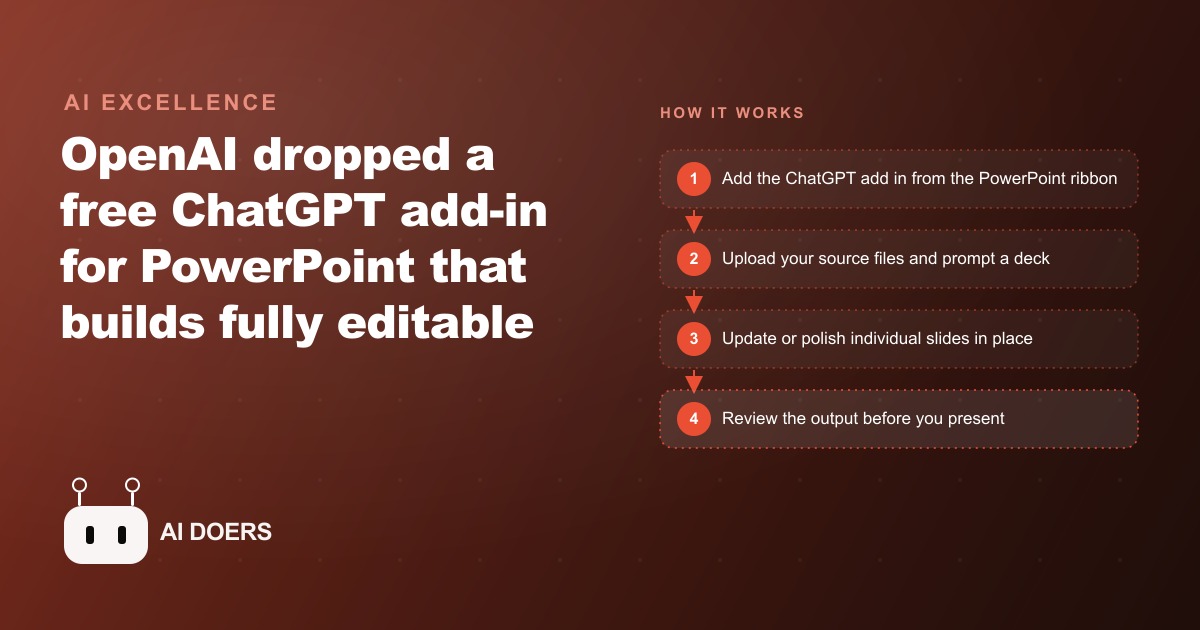
OpenAI shipped a free ChatGPT add-in for Microsoft PowerPoint, and the quiet implication of that move is worth thinking through carefully. I am Madhuranjan Kumar, and the story here is not about which features the add-in includes, though I will cover those, but about what it means that the most widely used presentation tool in business now has a language model sitting inside it at zero additional cost to anyone already using Office. The presentations most business owners produce are among the highest-stakes documents they create. The quality of a client proposal, a board update, or a team strategy presentation directly affects decisions that determine whether the business grows. A tool that makes first drafts of those documents faster to produce is not a convenience feature. It is a leverage point on the work that matters most.
The Add-In Installs in Under a Minute and Never Asks You to Leave PowerPoint
The ChatGPT PowerPoint add-in installs through the normal Office Add-ins store, the same path used for any other add-in, and appears as a side panel inside PowerPoint after installation. There is no separate application to launch, no subscription to configure, no API key to obtain, and no browser tab to keep open alongside the presentation. The ChatGPT interface appears where the Slide panel normally appears, and it stays available throughout the editing session.
The zero-friction installation is more significant than it sounds, because it removes the decision point that most business owners encounter when evaluating AI tools: the question of whether to change a workflow. When a new capability requires a new application, a new login, and a new convention for when to use it, most people eventually stop using it because the habit is too brittle to survive busy periods. When the capability appears inside the application already open, using it requires no additional setup discipline. It is simply available when needed, invisible when not needed, and never requires a conscious decision to switch contexts.
Everything the Add-In Produces Is Fully Editable and Owned Entirely by the User
One of the most common concerns business owners raise about AI-generated content is whether the output is truly theirs to use without attribution or legal uncertainty. The ChatGPT PowerPoint add-in produces content that is fully editable in PowerPoint's standard interface, stored in the PowerPoint file like any other content, and subject to the same intellectual property ownership as anything else the user creates in Office. There is no watermark, no "created by AI" tag embedded in the file, and no restriction on how the output is used once it is in the presentation.
This matters especially for client-facing work where the presentation represents the business's professional output. A proposal generated partially with AI assistance and reviewed, edited, and approved by the business owner is the business owner's work. The AI contributed a draft, the same role a junior associate might play in a larger firm, but the professional judgment, the client context, the editing decisions, and the final delivery are the business owner's contribution. Understanding the ownership and editability clearly allows the business owner to use the tool without hesitation on client-facing work rather than reserving it only for internal documents.
Four Core Capabilities Cover the Most Common Presentation Bottlenecks
The add-in's four core features address the four stages where most business owners stall when building a presentation. The first is generating a new deck from a text brief. Describe the presentation's purpose, audience, and key points in plain language, and the add-in produces a structured slide set with placeholder content organized around a logical flow. The first draft is not a polished client deliverable, but it is a structured starting point that eliminates the blank-slide paralysis that causes many presentation projects to stall before they begin.
The second feature is generating content from your own documents. Upload a report, a strategy document, a data export, or a client brief, and ask the add-in to extract the relevant points and structure them into slides. This is particularly useful for business owners who have good information in an unstructured form, like notes from a client discovery call or a data analysis in a spreadsheet, and need to convert it into a visual presentation for a client meeting. The conversion that previously required manually reading the source document and transferring content into slides can now be prompted directly.
The third feature is updating a specific section without touching the rest of the presentation. Ask the add-in to revise the executive summary slide without changing the supporting slides, or to update the pricing section to reflect a revised offer, and it modifies only the specified section while leaving the surrounding content unchanged. This is the feature with the highest frequency of use for anyone who builds proposals that need late-stage revisions, because late-stage revision is the most tedious and error-prone part of any presentation production process.
The fourth feature, called Understand, reads the existing deck and answers questions about it. This is useful when inheriting a presentation someone else built, when refreshing a deck that was last updated months ago, or when preparing to present a deck to a new audience and needing a quick summary of how the argument is structured before the meeting. The Understand feature treats the deck as a document it can analyze and summarize, which turns a dense presentation into a briefing document without any manual conversion work.
Setup Takes Under a Minute and the First Useful Output Appears in Under Five
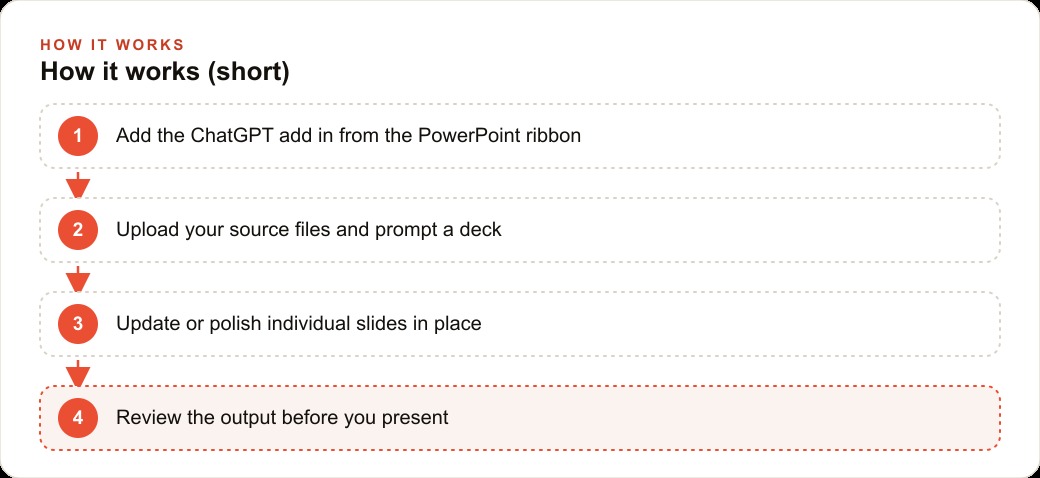
The actual setup sequence is: open Office Add-ins from the Insert menu in PowerPoint, search for ChatGPT, install the free add-in, sign in with an existing OpenAI account or create a free one, and the panel appears. The total time for a user who already has an OpenAI account is under two minutes. For a user who needs to create an account, under five. The first useful output appears as soon as the setup completes, because the blank slide problem is always present and a single descriptive prompt produces a first structure to react to.
The most important mindset shift for first-time users is treating the first AI output as a starting point for editing rather than as a finished product for delivery. Business owners who expect AI-generated presentations to require no editing are disappointed, and they conclude the tool does not work. Business owners who expect AI-generated presentations to require editing but significantly less time than building from scratch are consistently satisfied, and they build the tool into their regular presentation workflow. The difference is the expectation going in, not the tool's actual capability.
Build Decks From Your Own Documents and Cut the Transfer Time From Hours to Minutes
The document-to-slides feature is the capability with the clearest time ROI for a business that produces regular proposals and client updates from the same underlying data. A business that runs quarterly client reviews, for example, typically has a data source, a notes document, and a set of key findings that need to be translated into a presentation. That translation, done manually, takes two to four hours depending on the complexity of the data and the number of slides. Done with the add-in, it takes fifteen to thirty minutes, with most of the time spent on review and refinement rather than on transferring content from the source to the slides.
The accuracy of the transfer varies by source document quality. A well-structured document with clear headings and numbered sections produces better slide content than an unstructured block of notes. For businesses that want to get maximum value from this feature, the investment is in the quality of the source documents: writing discovery call summaries with clear section headers, organizing data exports with labeled columns and summary rows, and structuring strategy documents with explicit section titles. That structural discipline in the source documents pays double returns: it makes the manual reading experience better and it makes the AI-assisted slide generation more accurate.
Connectors Pull in Real-Time Data Without Leaving the Presentation
The Connectors feature allows the add-in to pull real-time data from Google Drive, Dropbox, OneDrive, and other connected sources directly into the presentation workflow. Rather than downloading a file, placing it somewhere accessible, and uploading it to the add-in, a business owner with the relevant cloud storage connected can reference files directly by name or location. For businesses that keep their operational data in cloud storage, this connection reduces the friction of using the add-in on current data rather than on data that was current when it was last downloaded.
The practical implication for businesses running paid social advertising campaigns and needing to report performance to clients or stakeholders is a direct path from the campaign data in a shared Drive folder to a presentation that summarizes it. Instead of downloading the performance export, opening Excel to format it, and then copying the formatted numbers into the presentation, the connected workflow allows the add-in to reference the source data directly and structure the summary. The reporting workflow that previously required an hour compresses toward fifteen minutes when the connectors eliminate the file management steps between data source and presentation.
The Gym Example Shows What a Real First Session Looks Like
A gym owner preparing a membership drive proposal for a local corporate partner can use the add-in as follows. They open a new PowerPoint file, activate the ChatGPT panel, and describe the proposal: membership discounts for corporate employees, including a price structure, key benefits, and a summary of the gym's facilities and credentials. The add-in generates a seven-slide structure covering the executive summary, the employee health business case, the facility and services overview, the pricing tiers, the onboarding process, the corporate contact, and a call to action. The generated content uses placeholder numbers for the pricing and facilities that the owner replaces with accurate figures. The logical flow is correct and requires no structural editing. The total time from blank slide to a draft ready for personal review is eleven minutes.
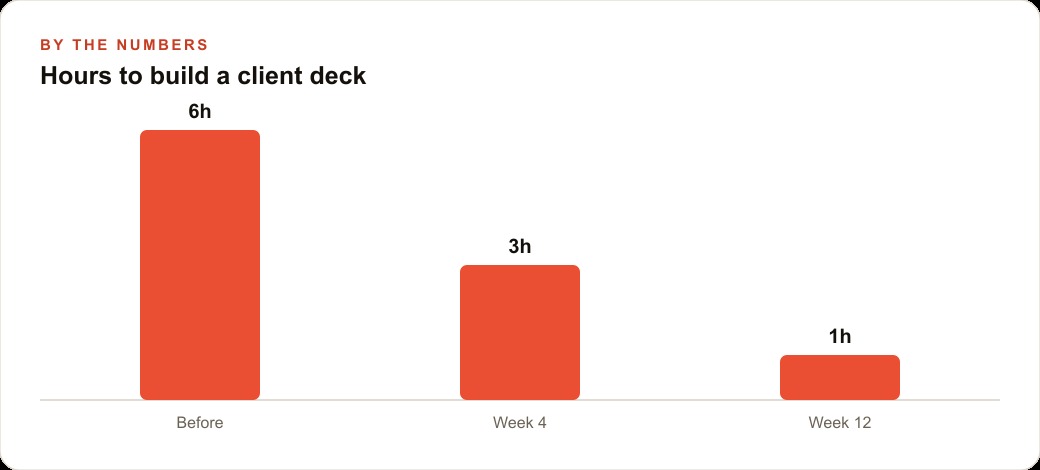
The owner then uses the Understand feature to verify the argument structure makes sense before personalizing the content: does the executive summary capture the main value proposition clearly, does the pricing section come after the value case has been made rather than before, does the call to action include enough specificity about next steps. The Understand feature confirms the structure is sound and flags that the pricing section appears before the full facility benefits section, which the owner repositions in two minutes. The final session time from blank to ready-to-send proposal is forty minutes, compared to the owner's usual two and a half hours for a proposal of this type. That hour and fifty minutes of recovered time per proposal, multiplied across the number of corporate pitches the gym owner sends per year, is a meaningful compounding return on a five-minute setup investment.
Treat Every AI Output as a Starting Point, Not a Final Product
The operating principle that determines whether the ChatGPT PowerPoint add-in produces professional-quality client work or work that reflects poorly on the business is simple: treat every AI output as a starting point that requires human review and editing before it leaves your hands. The add-in is genuinely useful for eliminating blank-slide paralysis, for converting documents into slides, for revising sections without touching others, and for reading back the structure of a complex deck. It is not useful as a substitute for the business owner's professional judgment about what the client needs to hear, what evidence supports the key claims, and what the right tone is for this specific relationship.
The business owners who get the most value from the add-in are those who internalize this operating principle from their first session and apply it consistently. They use AI for the structural and generative work, apply their professional judgment in the review, and ship a final product that is genuinely theirs and genuinely strong. The time they recover from the generative step is invested in the review step, producing better final output in less total time than either pure manual production or uncritical AI acceptance would produce.
That is exactly what we do at AI DOERS. Book a private 30-minute call with Madhuranjan Kumar and we will map the fastest path to it for your specific business.
Book your call →
Madhuranjan Kumar
Madhuranjan Kumar brings 20 years of performance-marketing experience and has managed over $200 million in Facebook ad spend for brands across the United States and beyond. His expertise spans the full modern marketing stack: Meta, Google Ads, TikTok, email automation, CRM, and the websites that hold it together. At AI DOERS he turns that track record into lead-generation systems for businesses across every industry.