
12 ChatGPT Features Most People Miss (And How to Use Them)
The most useful hidden ChatGPT features save a distinct writing style per task, lock a project to its own memory, connect your internal data as a knowledge base, and build working mini-apps, each removing repetitive prompting.

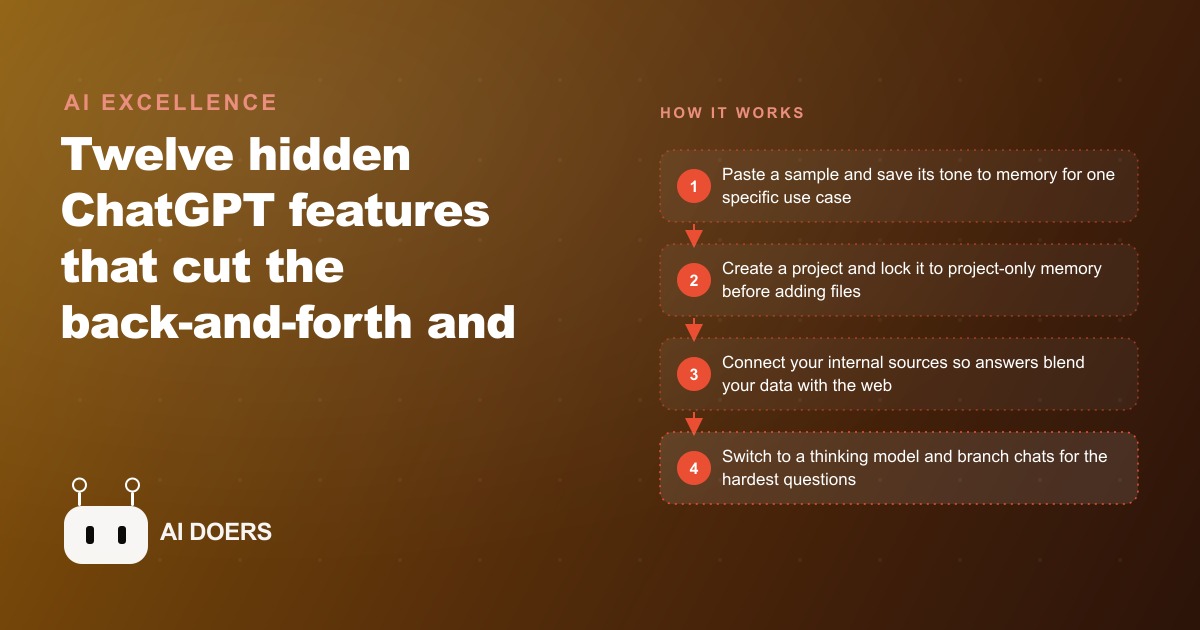
Most professionals using ChatGPT today are running it like a better search engine: type a question, read the answer, close the tab. What they are walking past is a set of features that eliminate repetitive setup work, connect the tool to internal data, and shift it from a conversation partner into something closer to a configured work assistant. I have mapped twelve of them here, each named for what it actually changes rather than where it lives in the settings panel.
Saved writing style per context means you stop re-explaining your voice at the start of every draft
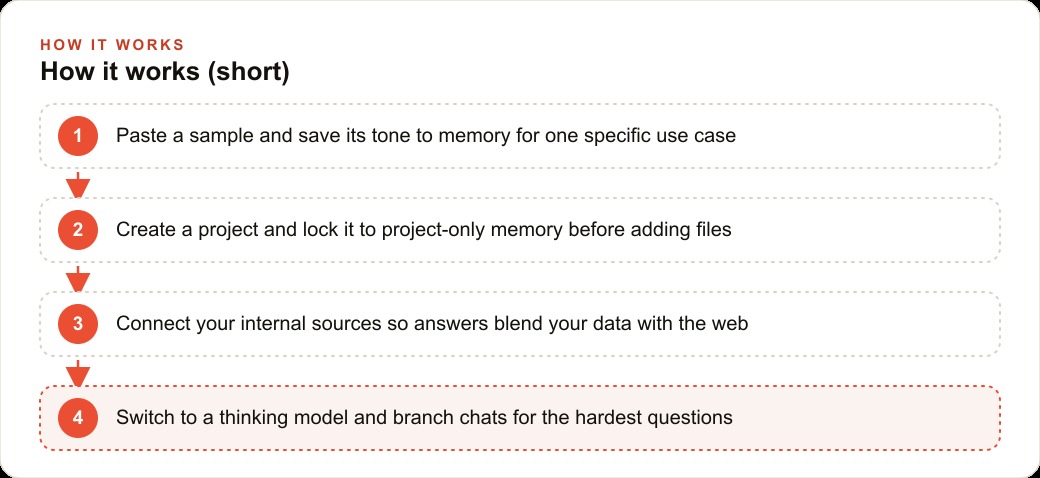
ChatGPT's memory can hold a precise, context-specific writing profile rather than just a generic preference. Paste a document that represents your best work for one use case, ask ChatGPT to analyze its tone, sentence length, formality level, and structural patterns, then tell it to save that analysis under a named context, for example client proposals or team updates. From that point, every draft for that context opens from your established voice without you having to describe it again.
The real power is running separate saved styles in parallel. One for client-facing deliverables that needs formal precision. Another for internal communication that can be direct and brief. Another for public content with a more conversational register. Each loads automatically for its designated context. Combined with the account-level personalization settings, this eliminates most of the tonal re-prompting that adds minutes to every session.
Scheduled reports mean your daily briefing arrives without you asking for it
ChatGPT accepts a standing instruction to produce a report on a recurring schedule and push it as a device notification. Tell it in plain language to send you a summary every morning at a specific time covering a specific topic: three key developments from the major AI labs, the top five items on your project tracker, or anything else you currently gather manually. It creates the recurring task and handles delivery on its own.
The value is removing a manual trigger from your daily routine. Rather than remembering to ask for the briefing each morning, you arrive to a summary that is already waiting. The setup happens once in a single instruction. For professionals who rely on a consistent daily intelligence input, this feature replaces a morning routine of multiple searches with a single prepared output.
Project-only memory keeps one client's context from bleeding into another
Inside any ChatGPT project, a gear icon exposes a memory mode that restricts the model to seeing only that project's own conversations and files. Context from all your other work stops influencing responses. The model behaves as if that project is the only engagement you have ever conducted with the tool.
Two things are worth knowing explicitly. First, this matters enormously for any work where context separation is not optional, such as managing multiple clients whose outputs should not cross-pollinate, or running a knowledge-intensive project where expertise from one domain would distort responses in another. Second, this setting cannot be changed after the project is created. You must decide the memory mode before adding the first file or starting the first conversation inside the project. There is no retroactive correction. Decide before you begin.
Personalization presets set your account-level tone once and carry it into every conversation
The personalization tab in settings offers tone presets at the account level: professional, friendly, candid, and others. These apply across all conversations unless overridden by a project-specific memory mode. The about-you section in the same panel carries your role, context, and goals into every response without you restating them at the start of each session.
This is the broadest context-setting tool in the system. Everything else in this list modifies behavior for specific projects or specific output types. This sets the baseline for everything. The value is in stacking it with the more targeted settings: the account-level preset establishes the foundation, a per-context writing style narrows it for a specific document type, and project-only memory isolates it for a specific engagement. Each layer makes the others more precise rather than conflicting with them.
Temporary chats exist specifically for conversations that should leave no trace in your account
The temporary chat option, accessible at the top of the interface, disables memory for that conversation entirely and keeps it out of your search history. When the chat ends, it does not influence how the model responds in any future session.
This matters for two categories of work. The first is sensitive material you need to analyze or draft that should not persist in your account history or shape future responses. The second is exploratory or speculative work: developing an idea you are not ready to commit to, testing a direction that might not go anywhere, or stress-testing an argument before you decide to act on it. Temporary chats give you full model capability without any of the accumulating context that comes from regular use.
Deep research sweeps a hundred or more sources for questions that genuinely need substance
Deep research does not produce a faster version of a standard chat reply. It produces a fundamentally different kind of output. The model searches a hundred or more web sources, reads them, identifies agreements and conflicts across them, and synthesizes an answer that reflects what multiple sources actually say rather than what a quick summary can produce. The result takes several minutes to arrive and is substantially longer and more thoroughly grounded than a standard response.
Reserve this for the questions where being wrong costs real time or credibility: due-diligence research on a vendor or partner, a competitive landscape analysis, background on a regulatory topic, or preparation for a presentation where the audience will push back. For routine factual questions and everyday drafting, a standard reply is faster and sufficient. Using deep research for every question burns time on queries where it adds no benefit.
The knowledge base connector makes ChatGPT search your own files alongside the open web
On business plans, ChatGPT connects to external data sources including Dropbox, Box, Google Calendar, Gmail, GitHub, and HubSpot. When these connections are active, a question draws from your internal files and systems as part of the same response that also references the open web. You stop getting answers built only from public information and start getting answers grounded in your actual documents, your real calendar, your live CRM data.
This is the feature that shifts ChatGPT from a general-purpose tool to something that reflects your specific situation rather than a generic version of it. Setup requires a business plan and an afternoon to configure the connections. The resulting quality difference on any question that benefits from internal context is immediate and significant, and the gap between a generic response and an internally grounded one grows larger the more specific your question is.
The apps connector pulls specialized tools into the chat with one at-mention keystroke
The apps connector works like a compact marketplace inside ChatGPT. Type the at-mention symbol and tools like Adobe Photoshop and educational platforms appear as options. Selecting one gives ChatGPT access to that tool's capabilities within the conversation, extending what the base model can do on its own without switching to a separate application.
The value is in tasks that require capabilities the base model lacks: image editing that needs Photoshop-level precision, specialized content from a structured external curriculum, or any domain where a dedicated external tool does something meaningfully better. The at-mention interface makes these extensions feel like a natural part of the conversation rather than a separate tool switch, which keeps the workflow continuous rather than fragmented.
Switching a custom GPT to the current model takes fifteen minutes and often transforms the output
Many teams built custom GPTs during earlier model generations and have not revisited them since. These GPTs often have system prompts tuned for GPT-4.0 or earlier behavior, and those prompts frequently underperform on the current reasoning models because instruction-following changed significantly across model versions.
Switching the underlying model in an existing custom GPT to a current version takes a few minutes in the settings panel. Updating the system prompt to match how the current model interprets structured instructions takes another ten to fifteen minutes of review and adjustment. The combined effort is small and the output quality improvement is often substantial enough to notice on the first run. Any custom GPT that has not been updated in more than six months is a candidate for this review. The older the GPT, the more likely the gap between its current output and what it could produce on the current model.
Parallel image generation returns a full batch at once instead of one image at a time
Instead of sending one image prompt, waiting for the result, and then sending the next, you can fire several image prompts in sequence and receive all the results rapidly together. The current image model processes these roughly four times faster than earlier versions, which means a batch of six or eight images comes back in quick succession rather than requiring six separate waits.
The practical change is how you approach visual ideation. Rather than committing to one direction and iterating from it, you can generate a spread of options across different styles or compositions and evaluate them against each other simultaneously. That shift from sequential to parallel visual generation changes the time cost of visual exploration significantly on any session where you need options before you commit.
Canvas mode turns a plain-language request into a working mini-app with a live preview
Turn on canvas mode and describe the tool you want in plain terms. ChatGPT writes the code and presents a live preview of the resulting application within the interface. The output is a working piece of software, not a description of what code might look like, with a shareable link and embed option you can send or use immediately.
For business users without a coding background, this changes what is buildable without hiring a developer or a freelancer. A custom calculator, a simple data entry form, a to-do list with specific logic, a quiz with custom scoring rules, a basic scheduling tool with specific constraints: all of these are now buildable through a conversation rather than a development engagement. The output is not polished consumer software, but it is functional software for internal use or fast external prototyping, delivered in minutes.
Chat branching lets you explore two directions from the same point without losing either thread
Any message in a chat can be branched into a separate thread using the options menu. Both branches continue from the same conversation history up to the branch point, which means you can explore two competing directions, two different framings, or two alternative approaches without starting a new chat and rebuilding the context that led you there.
Save both branches to a project and they retain full shared context across sessions. Switch to a thinking or extended-reasoning mode in either branch for the steps that need deeper analysis. The combination lets you run parallel paths through a hard problem without paying the context-rebuilding cost of two separate conversations.
---
Here is one specific workflow where three of these features combine to eliminate measurable time from a recurring task. A team that produces client reports on a regular basis sets up a writing style saved to memory for their report format, connects the knowledge base to the firm's internal document store, and uses project-only memory to keep each client's work isolated. When a report is due, the team opens the relevant client project, asks for a first draft that draws on the firm's internal documents for that client's topic, and receives output that already reflects the firm's writing voice and the client's actual situation.
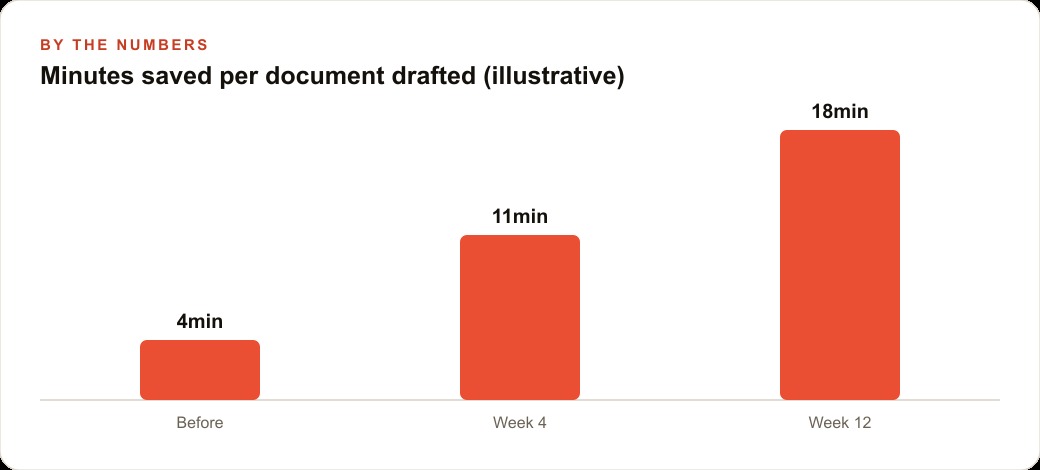
Before setting up these three features, producing a first draft required roughly 45 minutes: re-explaining the writing style at the start, manually pulling and pasting relevant internal documents as context, and watching for account-level memory contamination that mixed guidance from other clients into the current work. After setup, the same draft takes around 12 minutes: open the project, describe what the report needs to cover, review the output. That 33-minute reduction per document, applied to eight documents per week, returns more than four hours of drafting time weekly from a single configuration afternoon that happens once.
That is exactly what we do at AI DOERS. Book a private 30-minute call with Madhuranjan Kumar and we will map the fastest path to it for your specific business.
Book your call →
Madhuranjan Kumar
Madhuranjan Kumar brings 20 years of performance-marketing experience and has managed over $200 million in Facebook ad spend for brands across the United States and beyond. His expertise spans the full modern marketing stack: Meta, Google Ads, TikTok, email automation, CRM, and the websites that hold it together. At AI DOERS he turns that track record into lead-generation systems for businesses across every industry.